Sungrow Monitoring Setup Guide

A step by step guide and trouble shooting tips

iCloudSolar setup – Easy steps to solar monitoring

This page will assist you in setting up  and problem solving your Sungrow solar monitoring. We also provide a video tutorial on how you can read the solar monitoring app.  Finally we’ve  added support contact details for GI Energy and Sungrow should you need further assistance.

The following steps are a guide to the setup:

Step 1

Prepare by getting your home WiFi network name and password and obtaining the Solar inverter serial number and password.

You will find the serial number on the side of your solar inverter.  You will know it is the correct serial number because it will have a password directly below it.  For example:

Serial number: A181 XXX XXXX (the letter A followed by ten numbers)

Password: XXXXXXXX (eight numbers)

It may be easier to take a photo of this sticker.

Step 2

If you need detailed screen-by-screen guidance, you can download the Sungrow setup guide.

This guide will give you a few additional details you may need to complete the setup.

Step 3

Download the iSolarCloud app onto a smartphone or tablet.  Do this by going to either the Apple app store or the Google android store on your phone or tablet.

Step 4

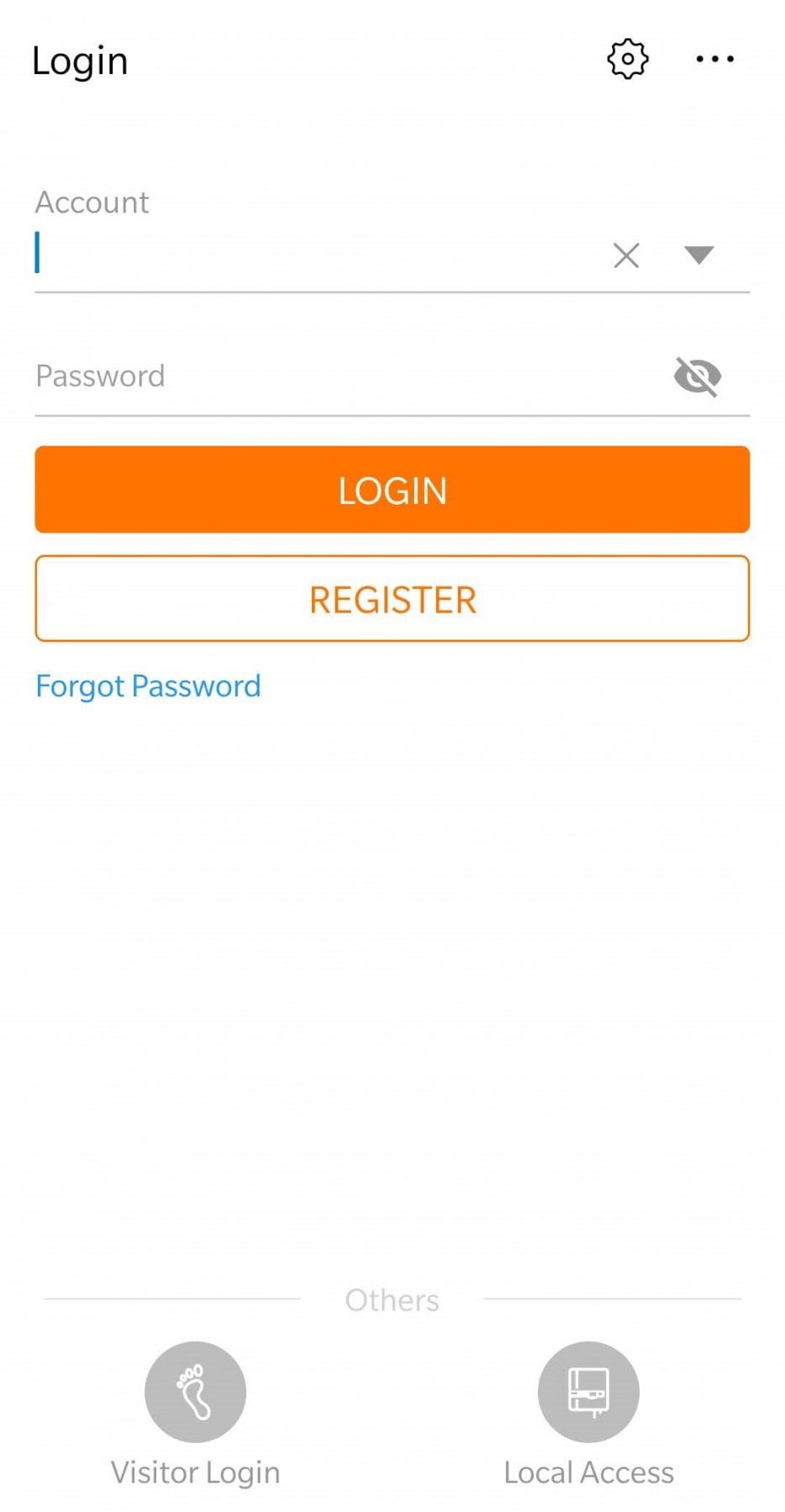
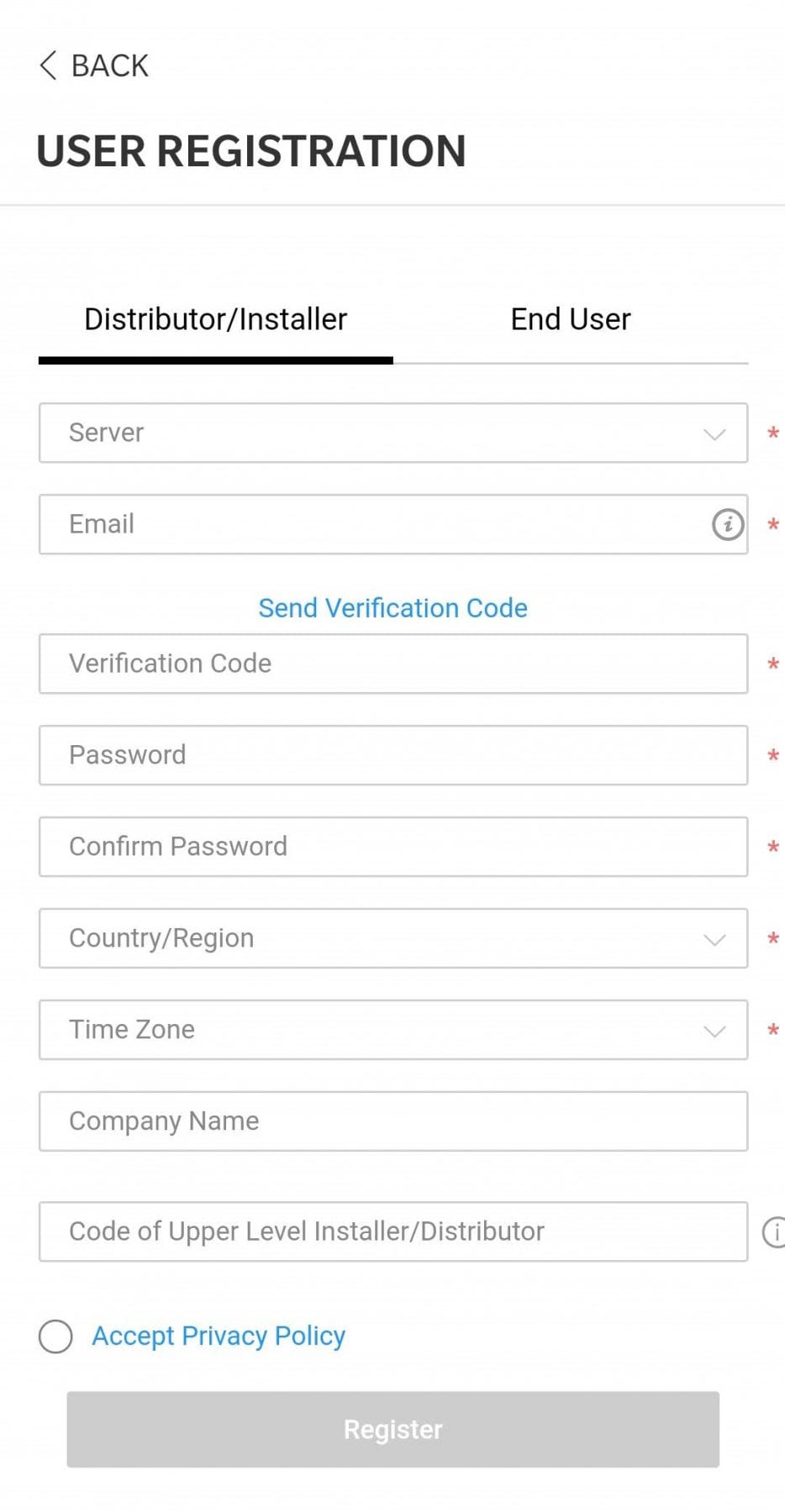
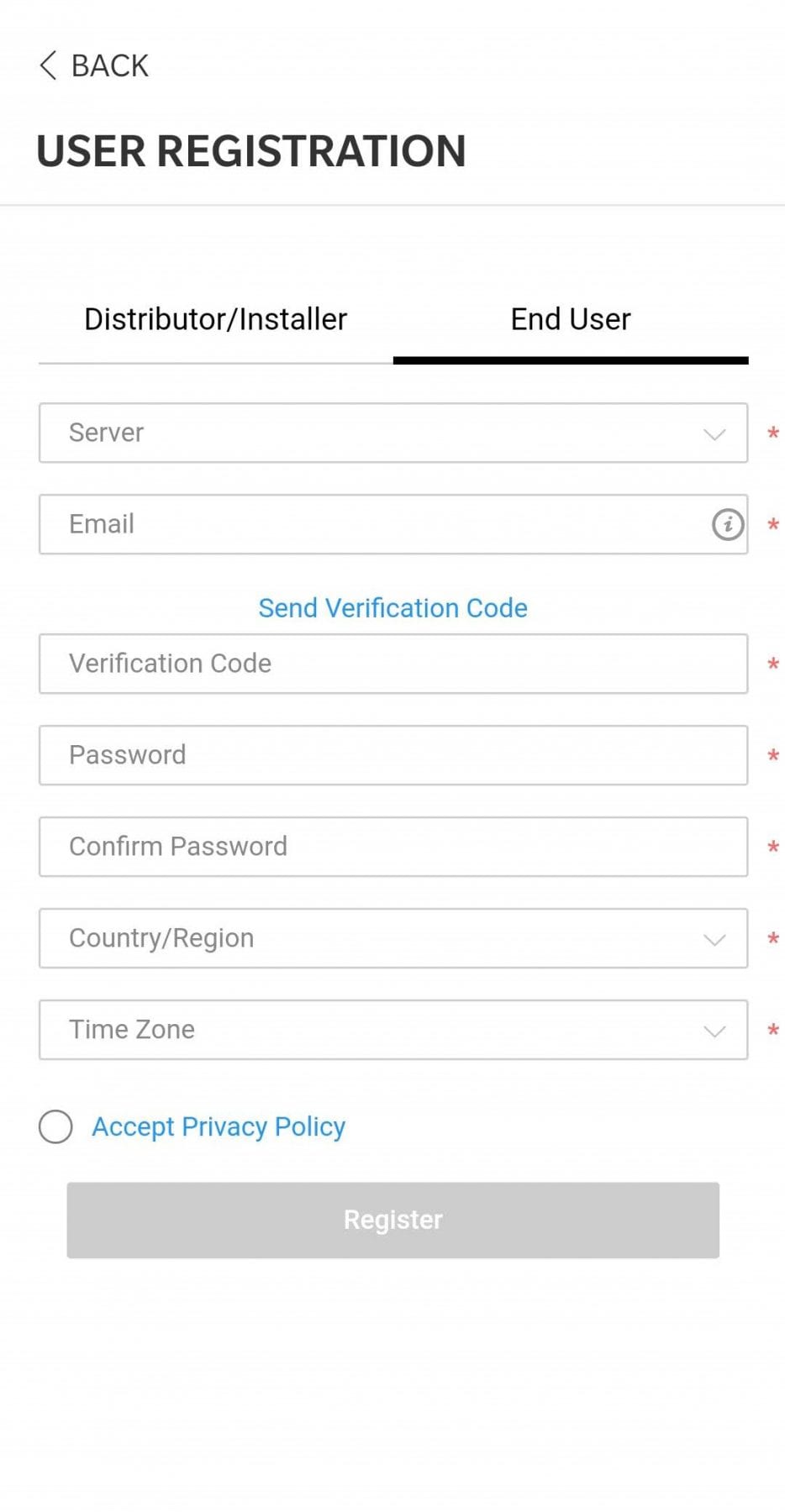
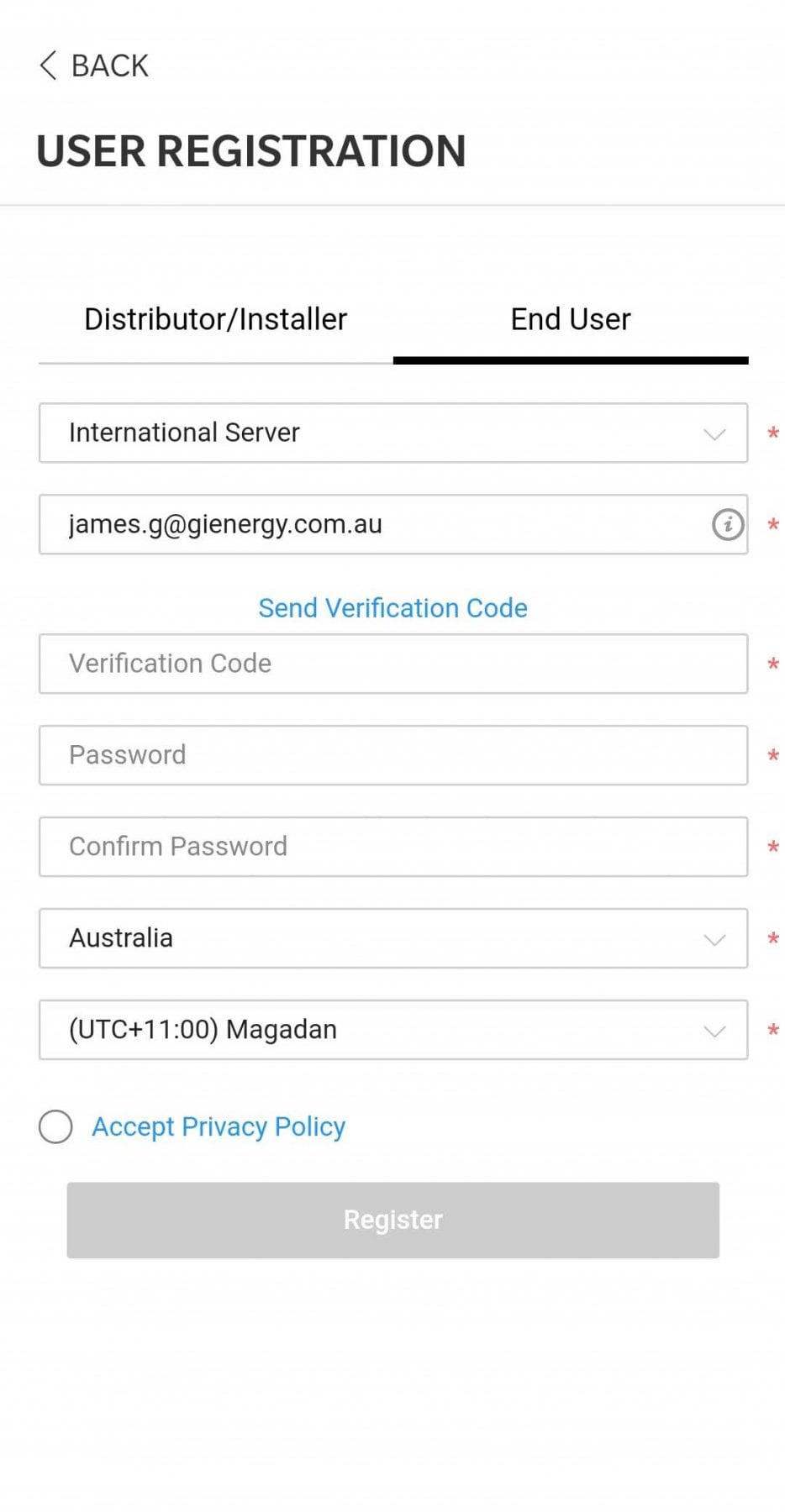
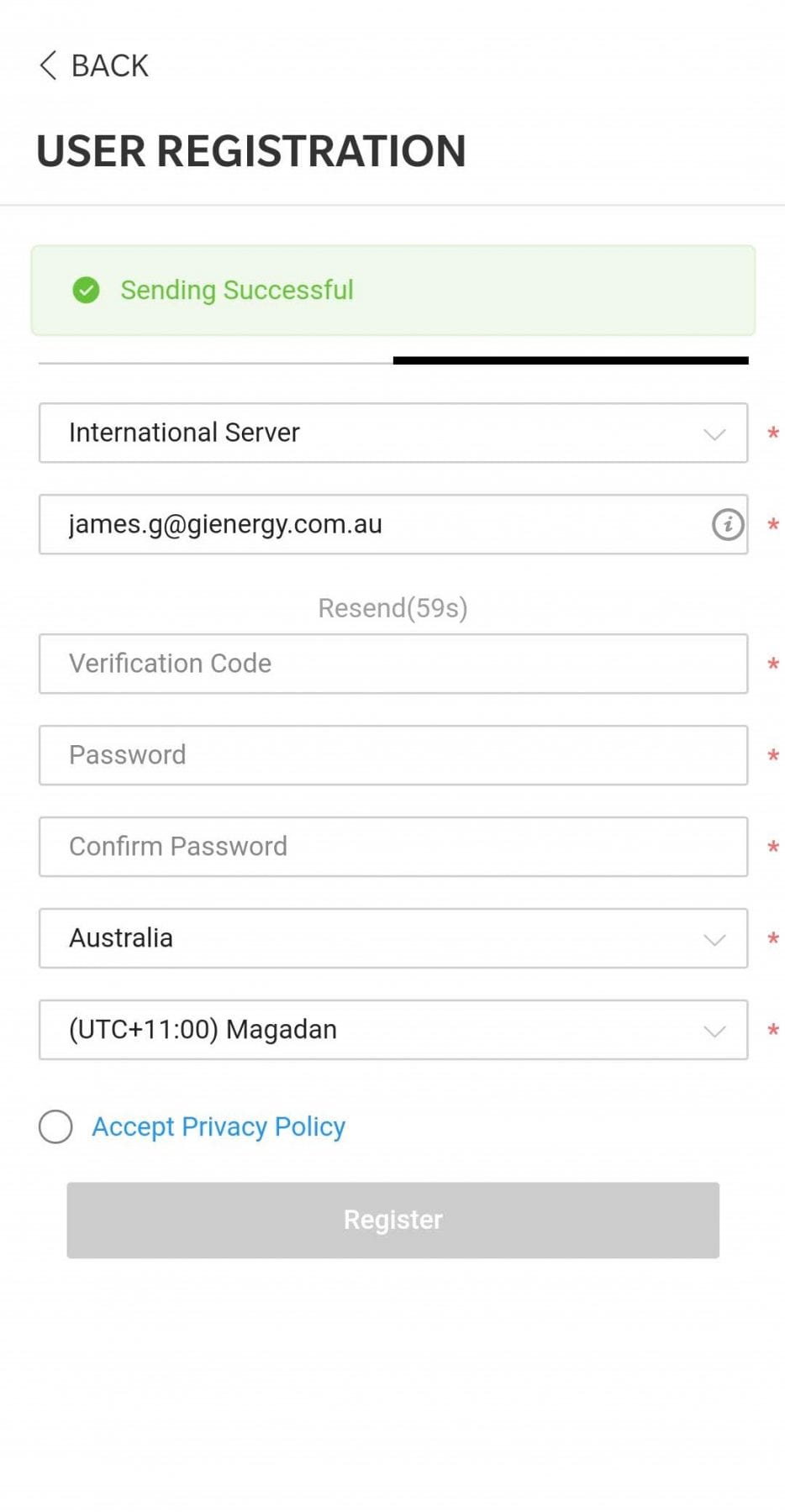
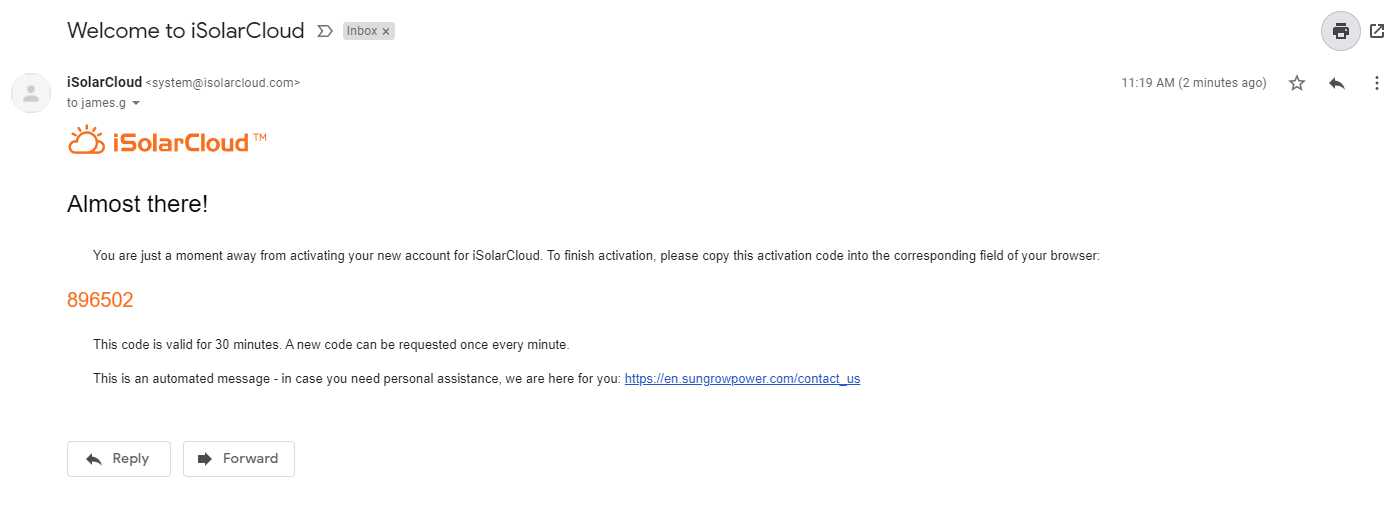
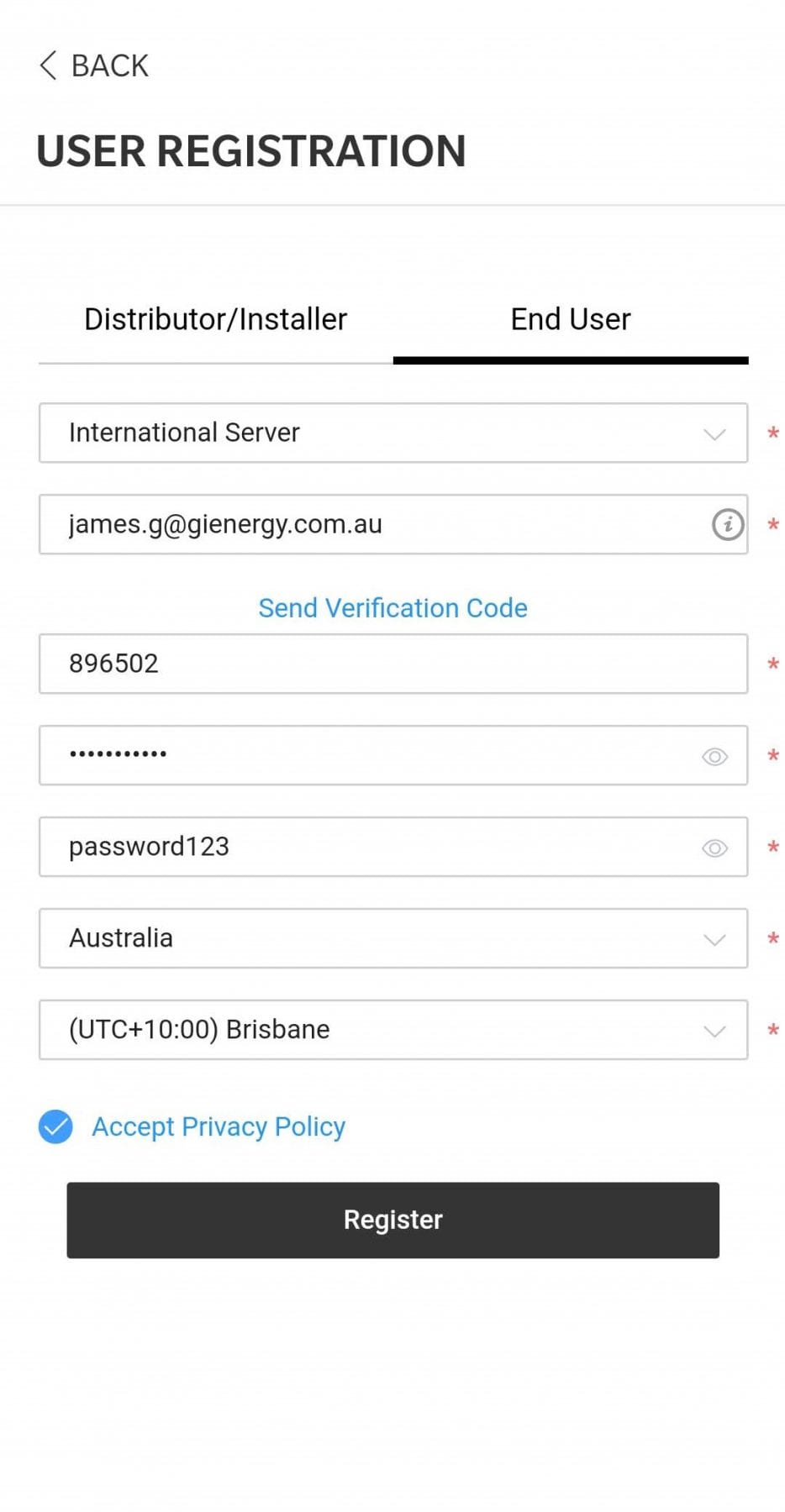
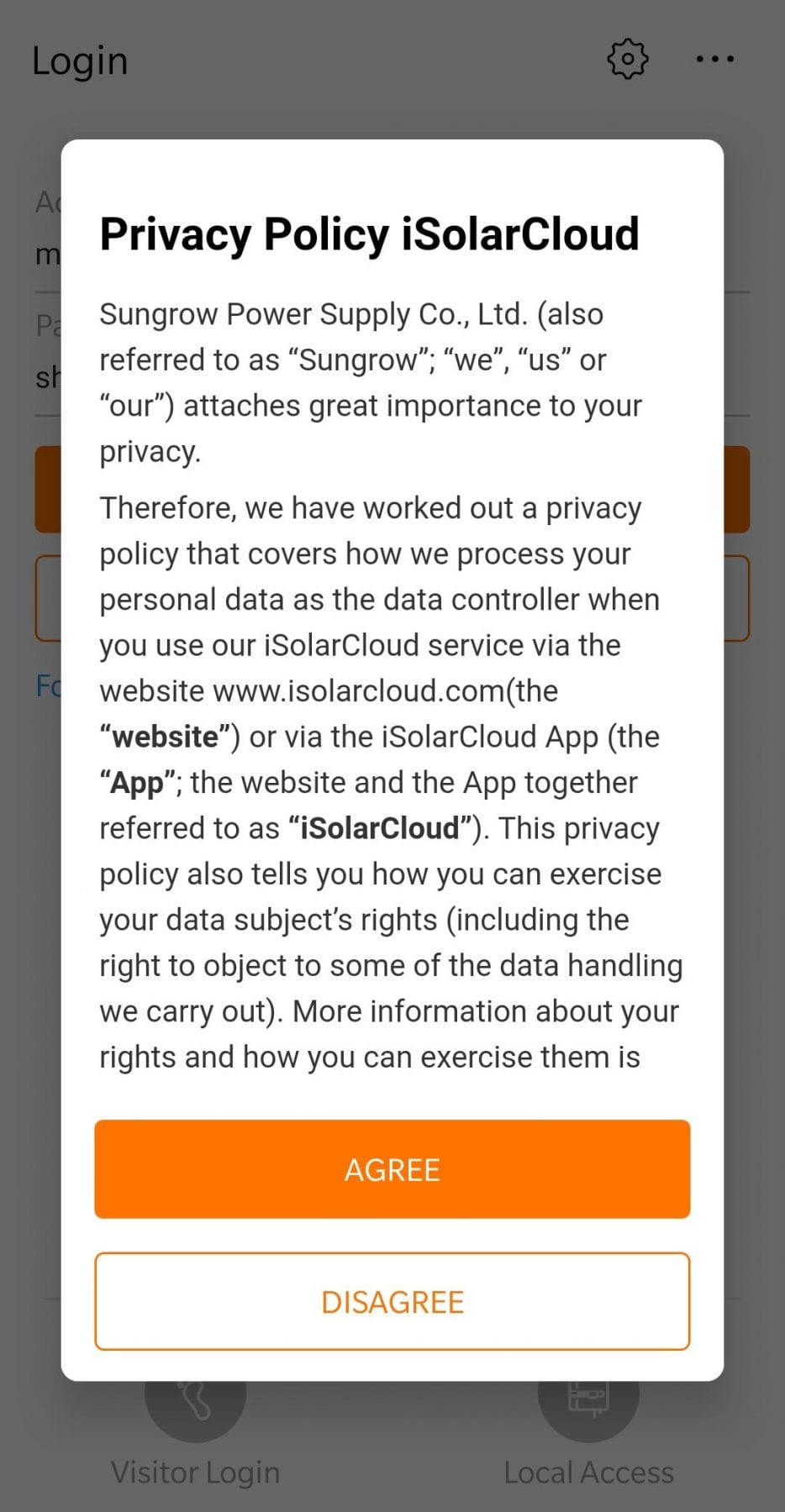
Open the application and begin the registration process.  During this process, you will be asked to enter your email address.  Directly after entering your email address, you will be asked for a code.  Please check your email for this code – it has been sent to your email as soon as you entered your email address.

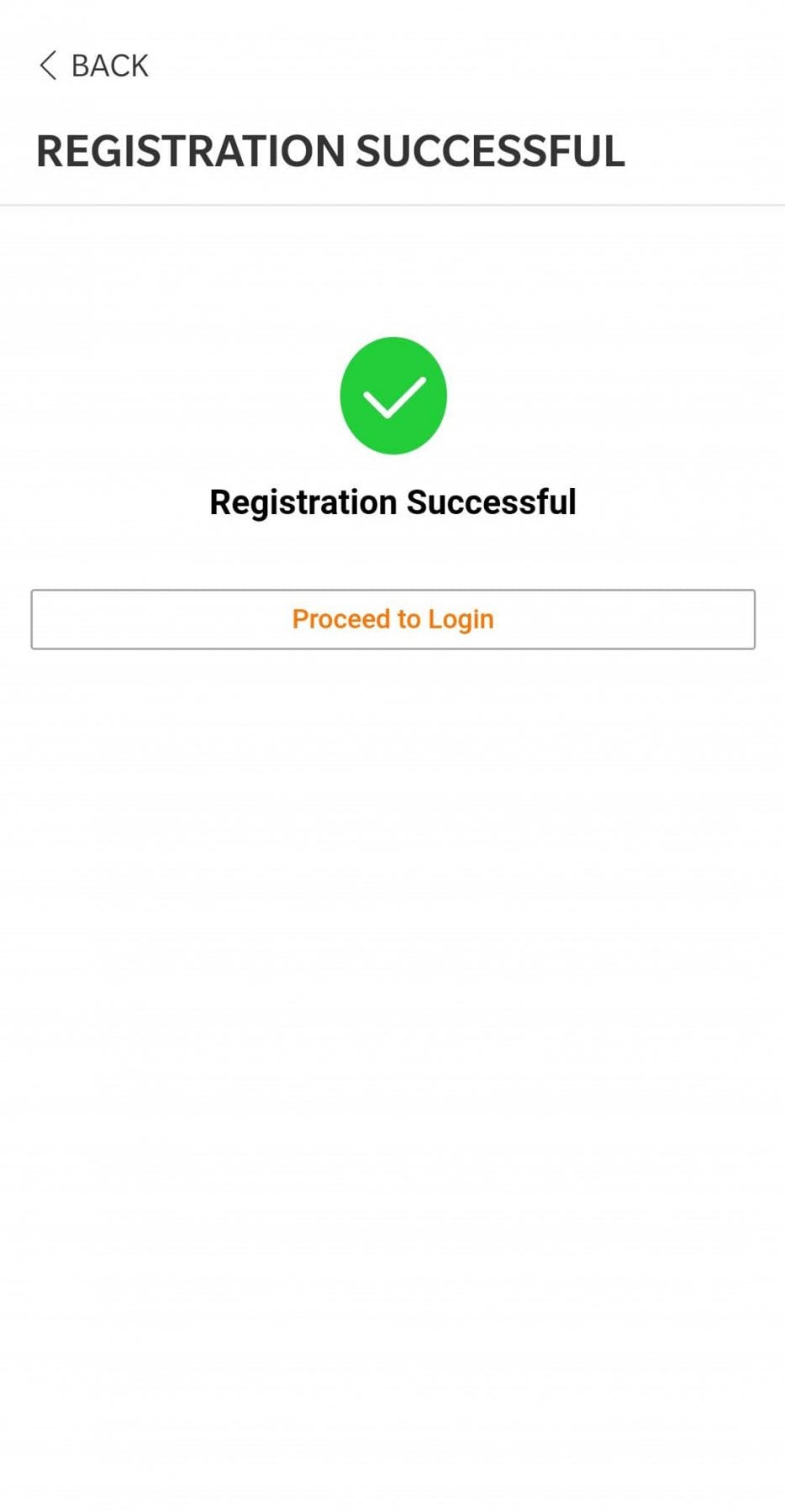
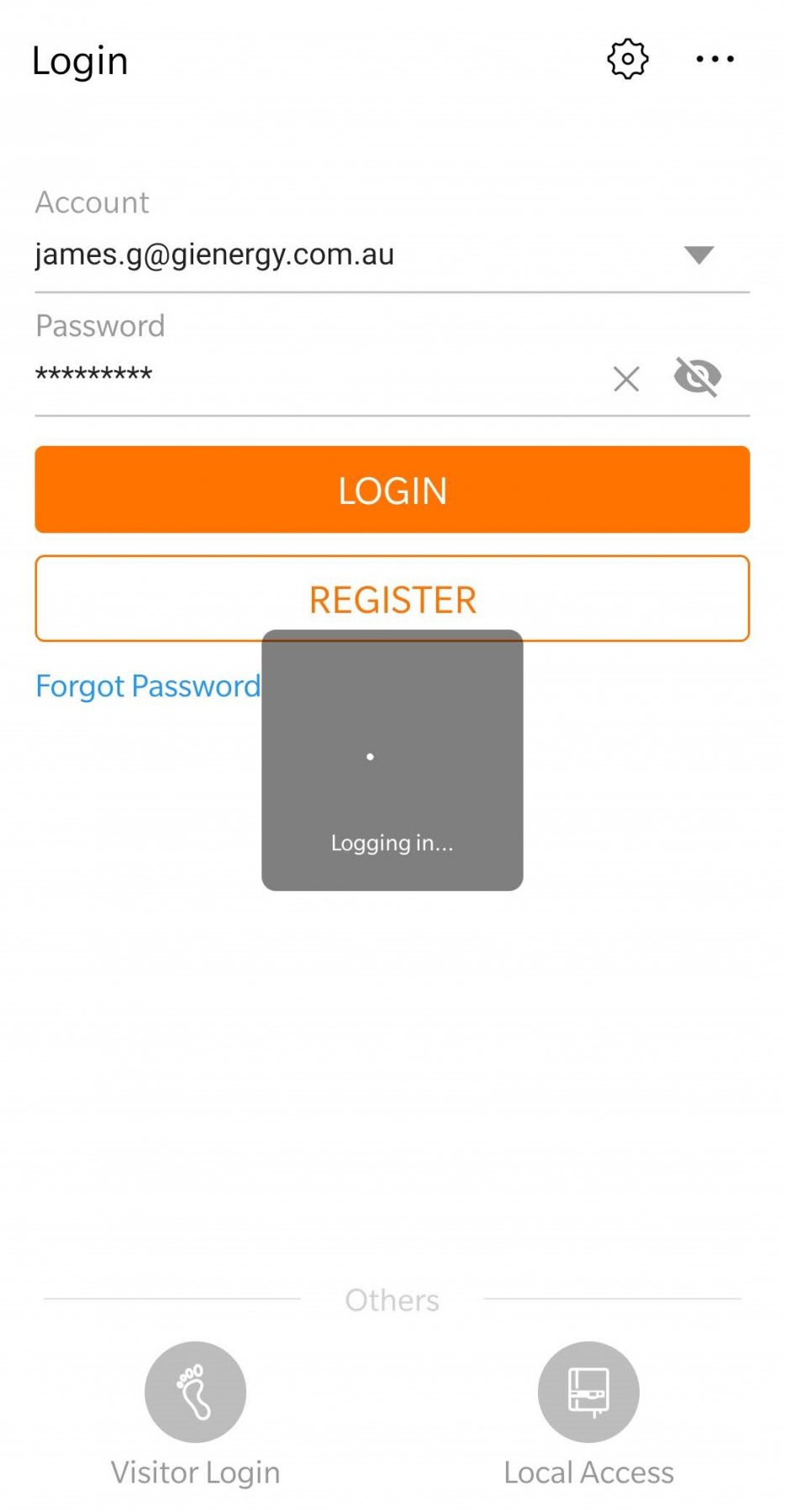
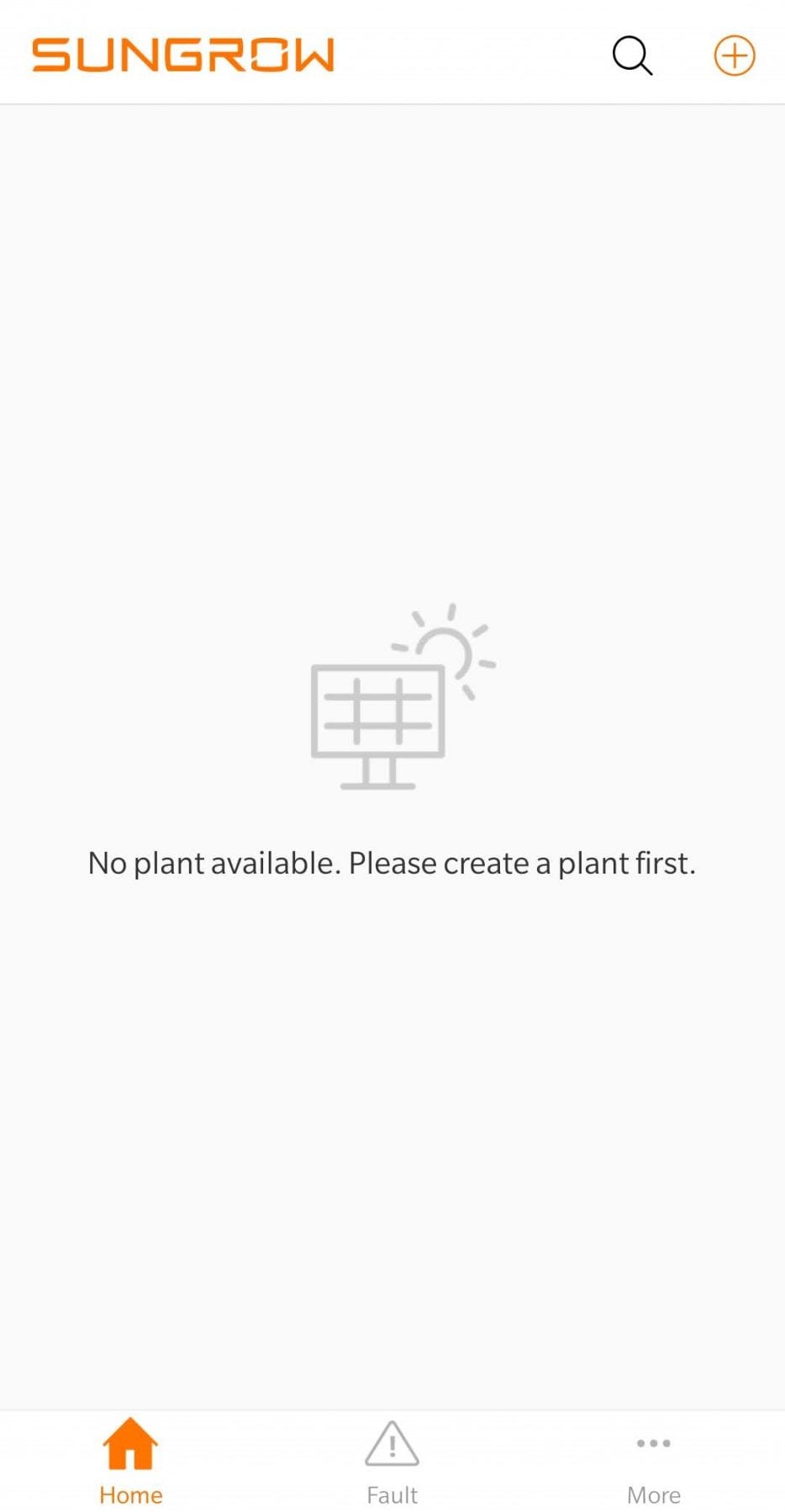
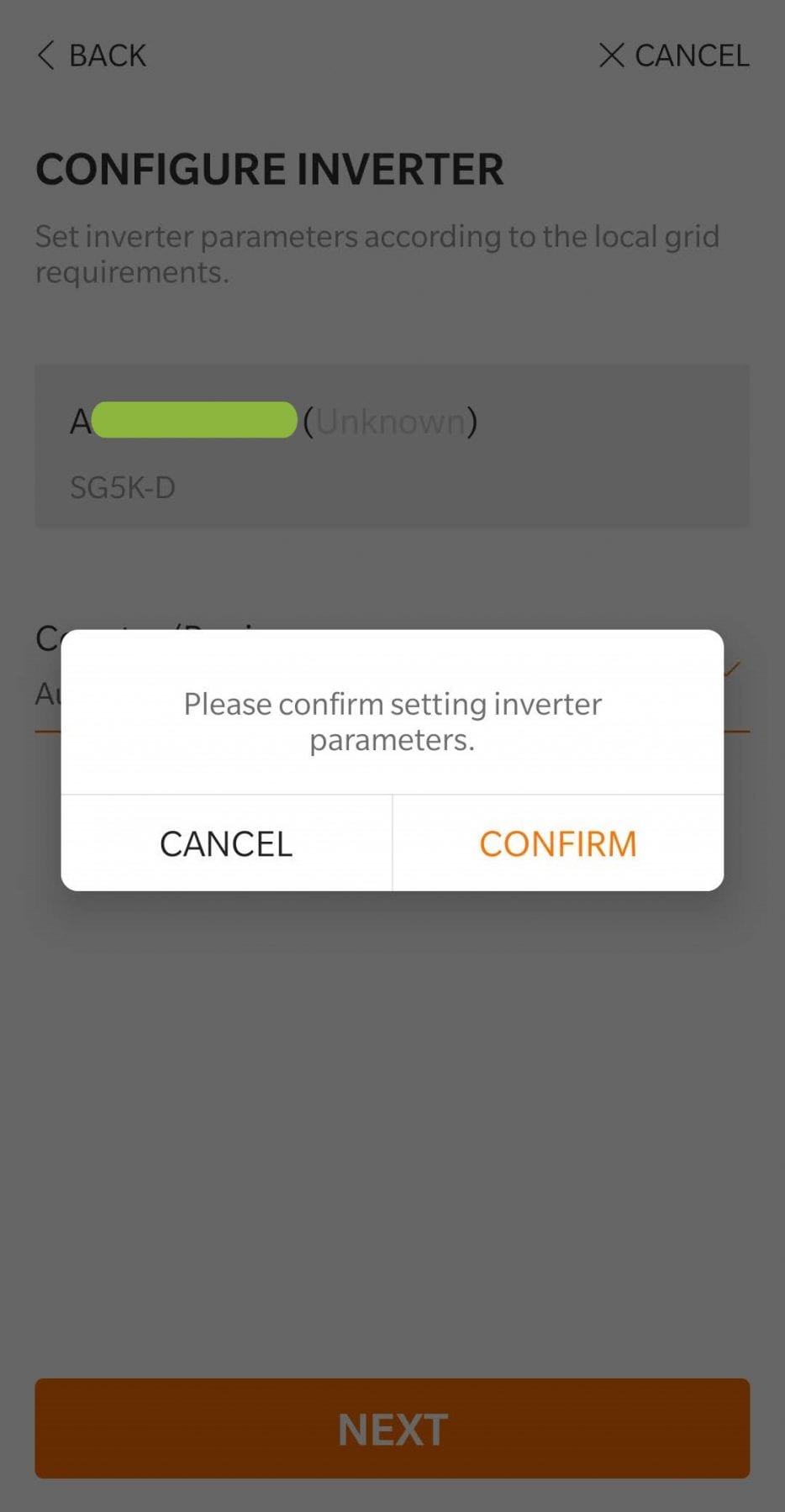
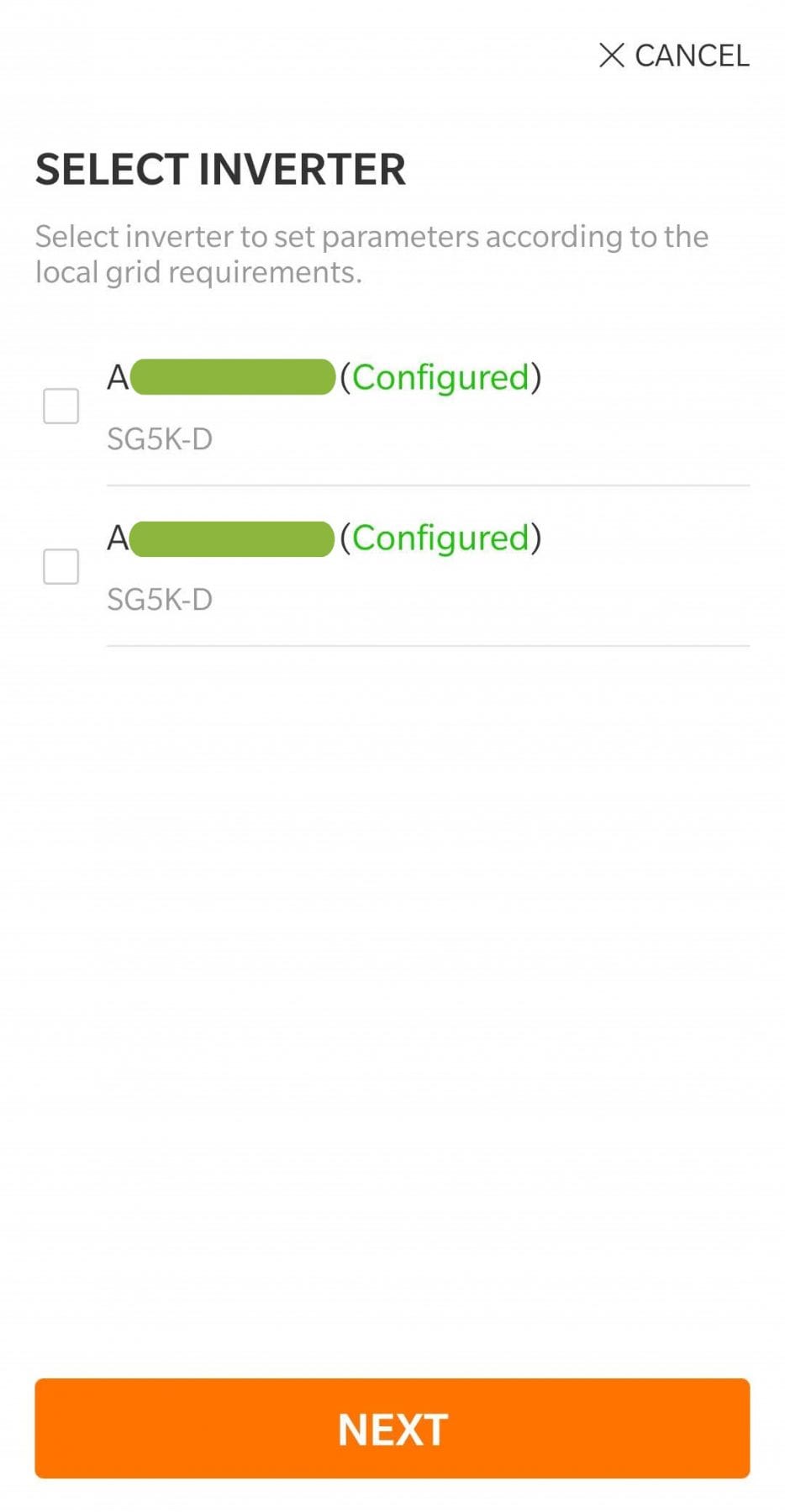
Once you have entered the code, please continue to follow the onscreen instructions.  You can use the Sungrow guide if you need any clarification.

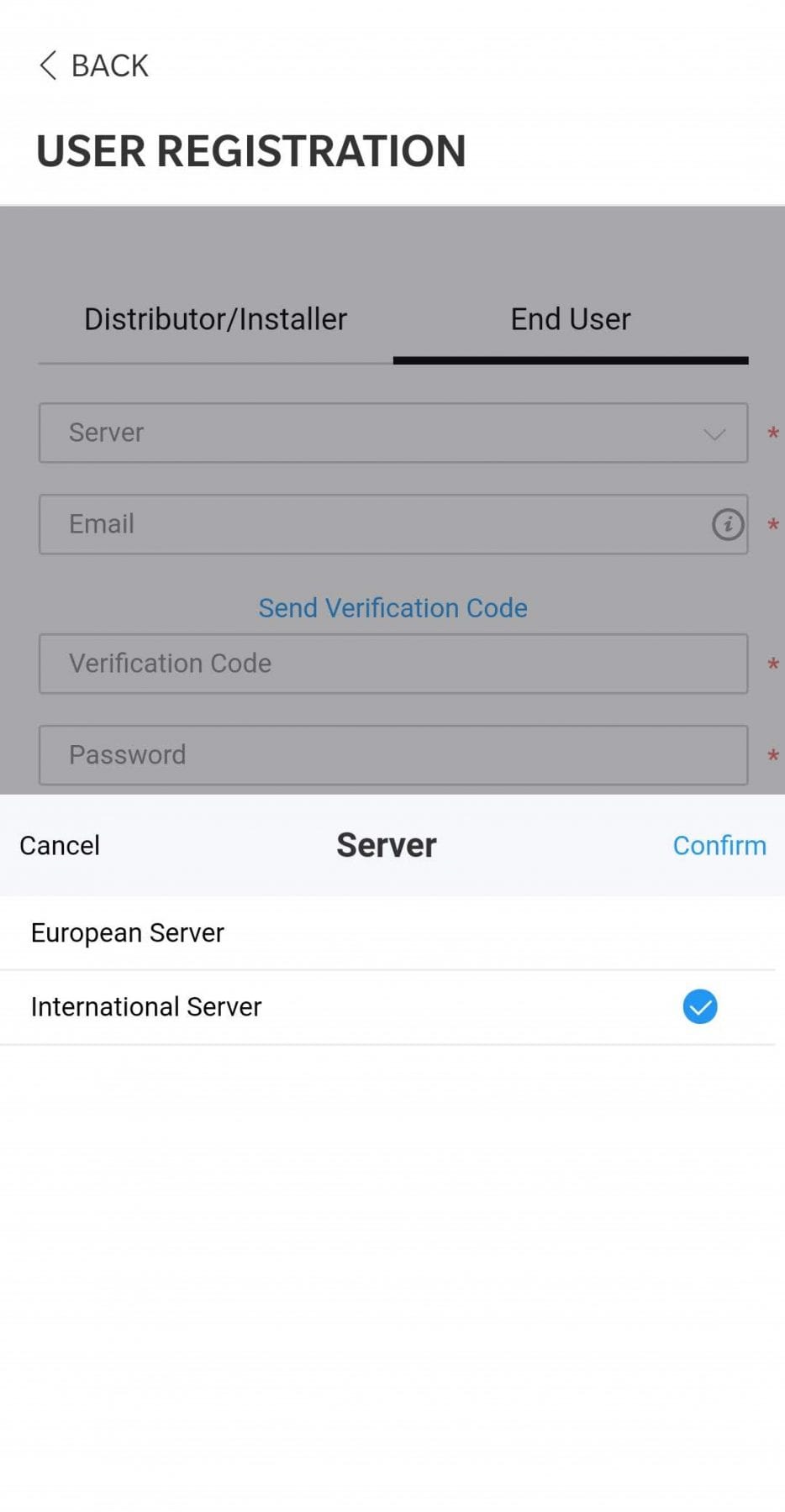
Please ensure you keep international settings

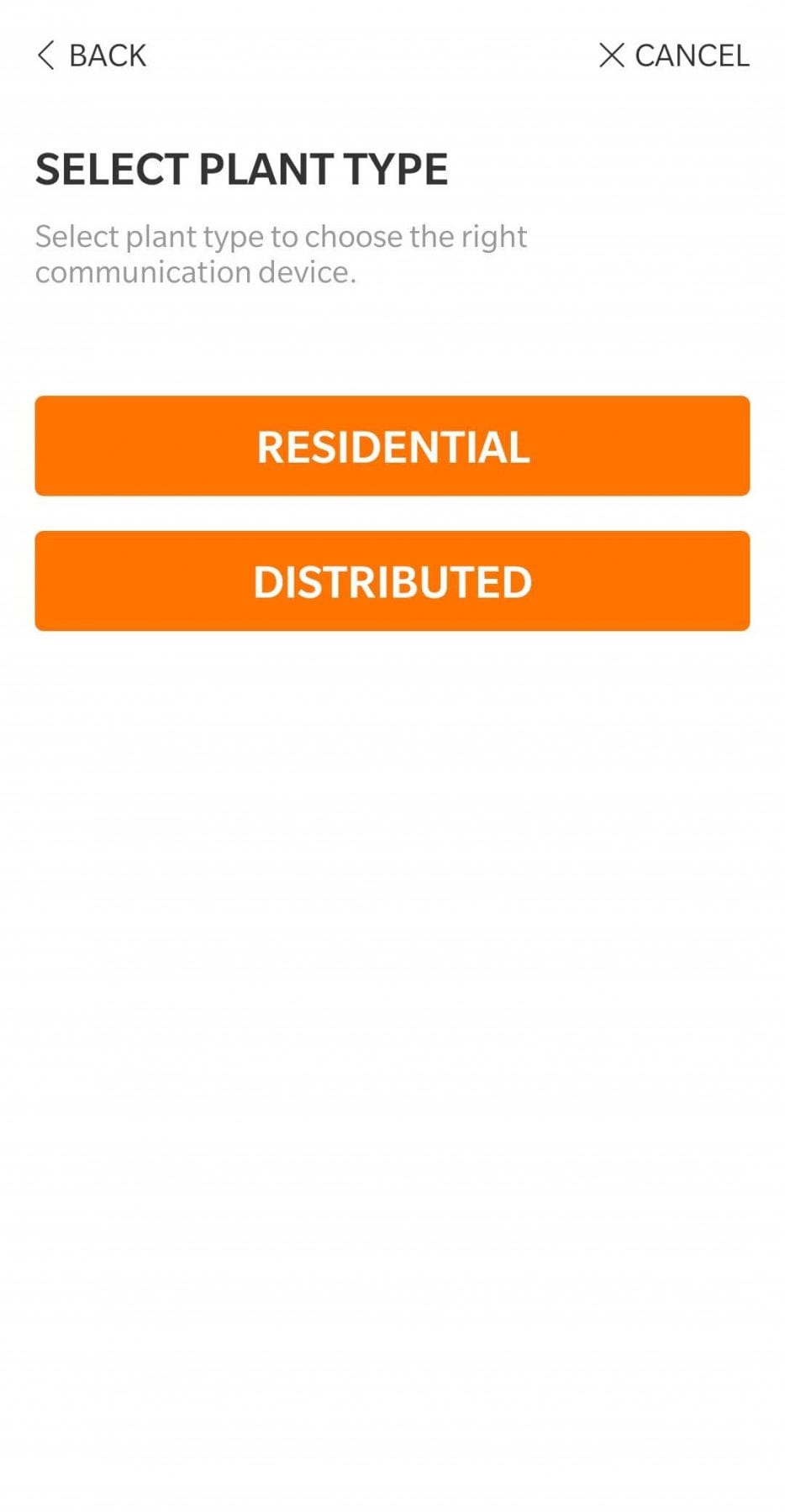
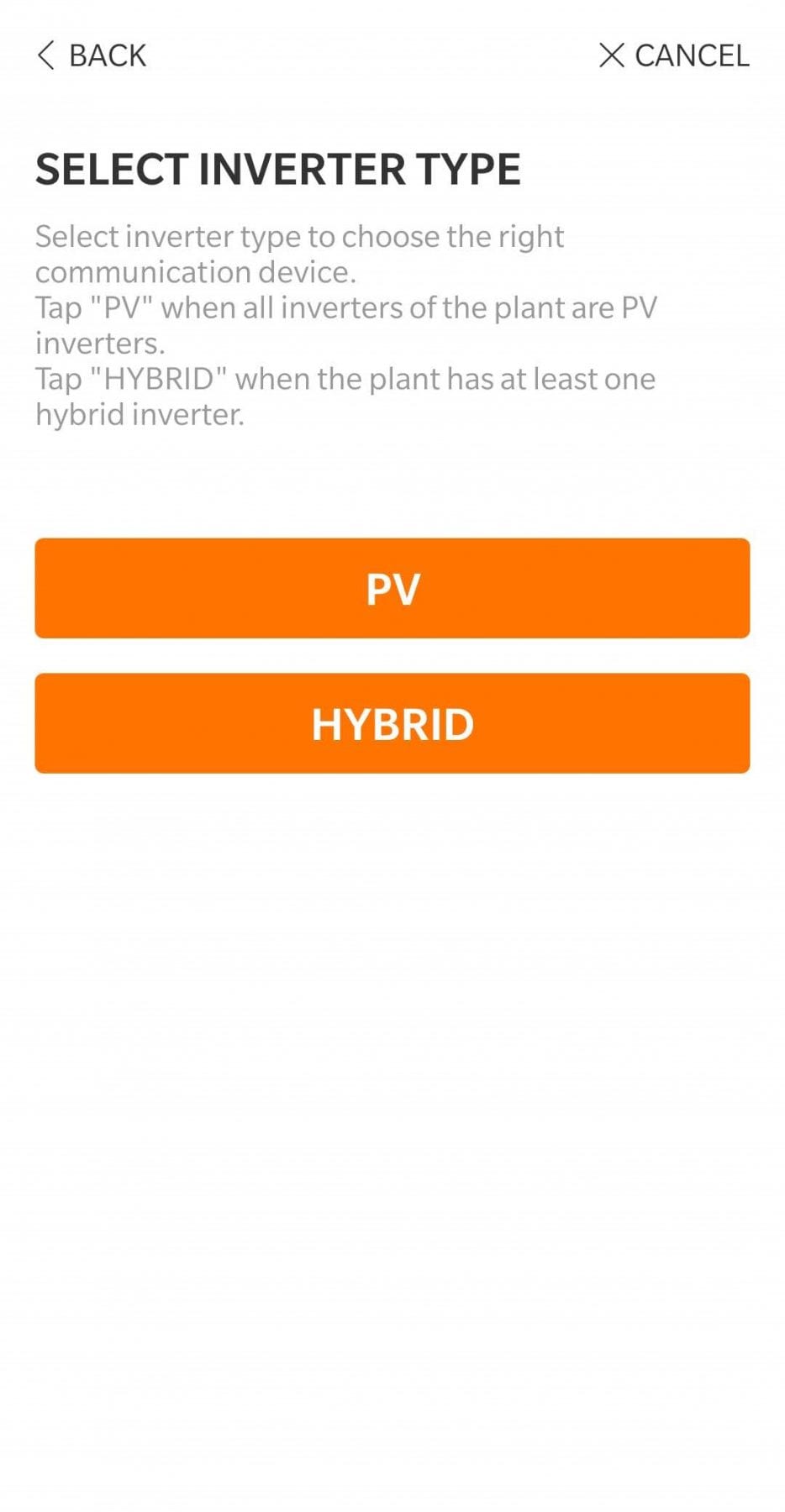
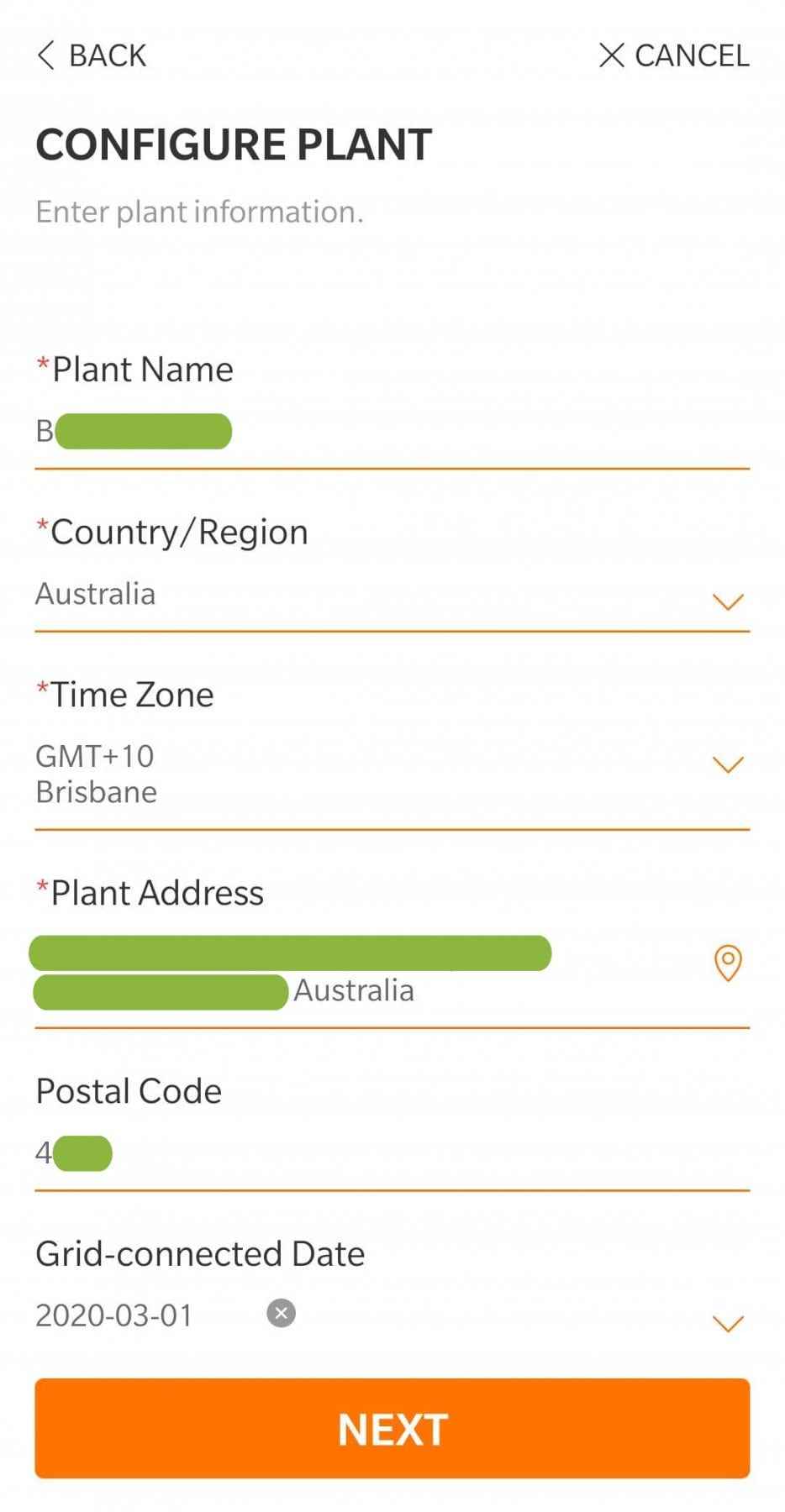
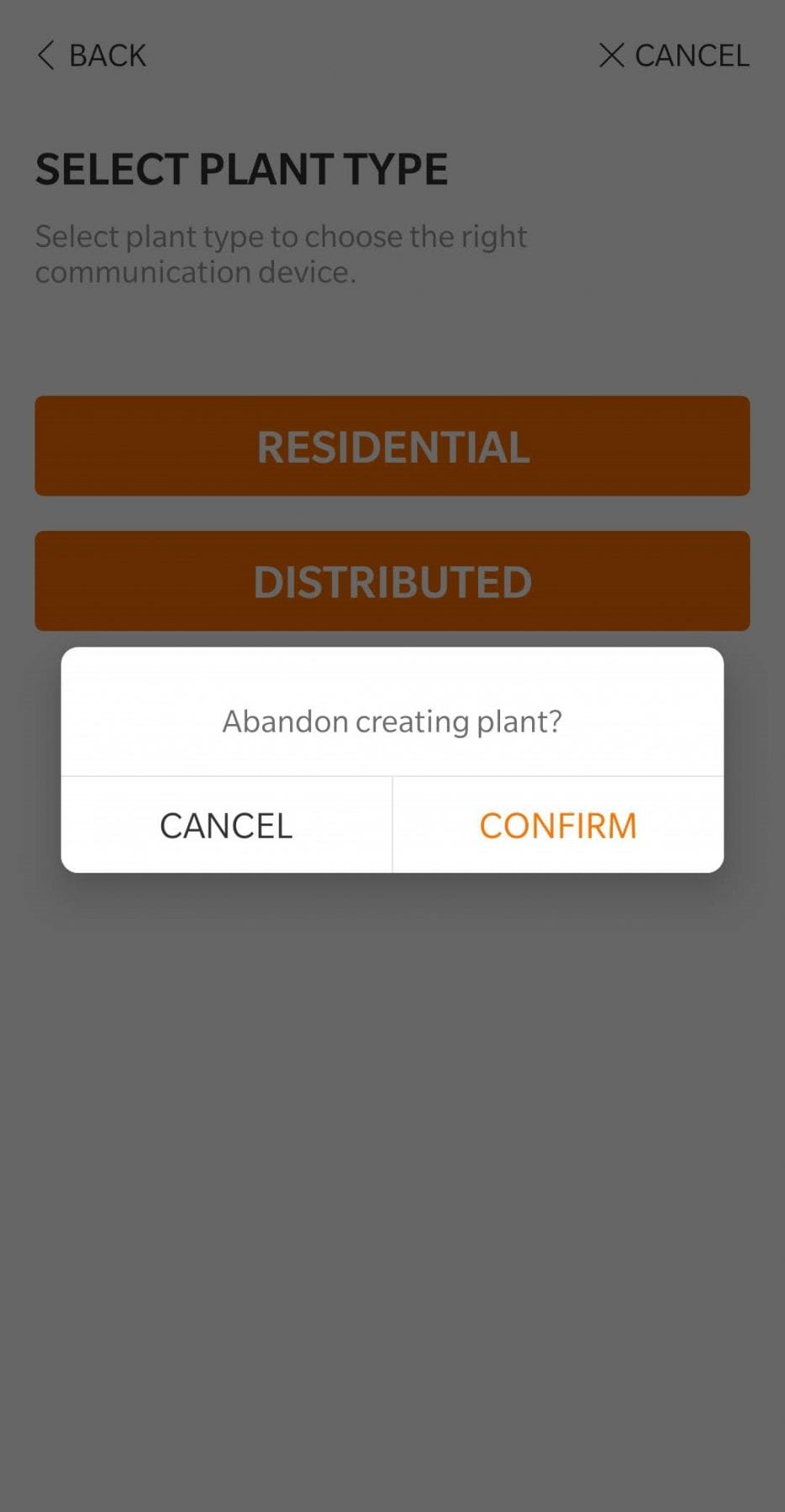
If you have a battery installed, please ensure you select the ‘Residential Storage’ option.  If you do not have a battery installed, please select the ‘Residential PV’ option.

Share your system monitoring with us

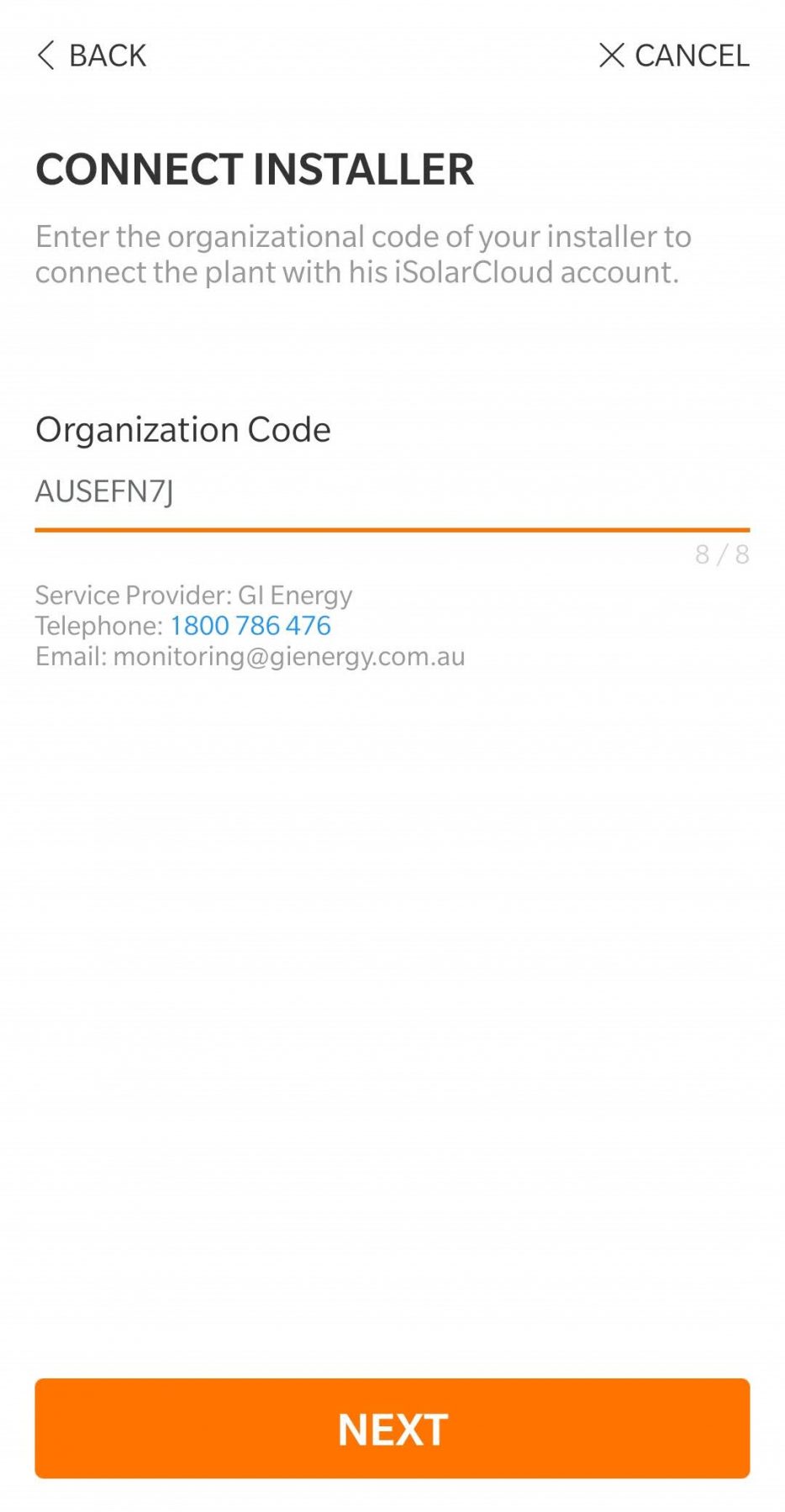
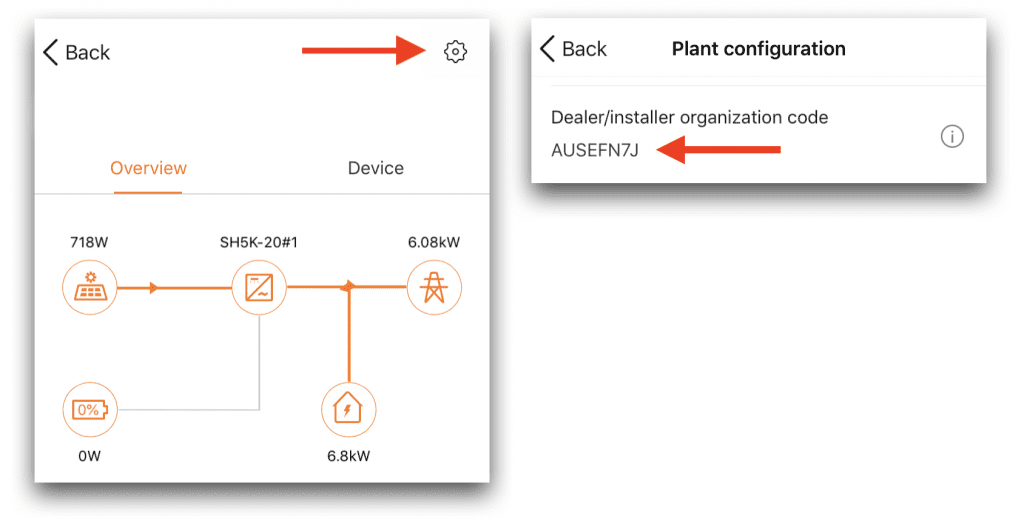
During setup you will also be promoted for an installer code.  Entering this code will allow GI Energy to co-monitor your system and allow us to diagnose problems and answer your questions with more insight.

GI ENERGY INSTALLER CODE: AUSEFN7J

If you have completed setup, but have not shared your system with us, you can do this by clicking on the settings cog on the top right of the main monitoring screen, clicking on plant configuration and scrolling down to the dealer/installer organisation code:

Why should you share your monitoring with us?  The simple answer is to that we can support you.  If you have a question about your system performance, savings or the app itself, we will be able to see what you see.  If there is a technical problem, we will be able to diagnose it faster so that we can resolve the problem quickly.

Rename your system 

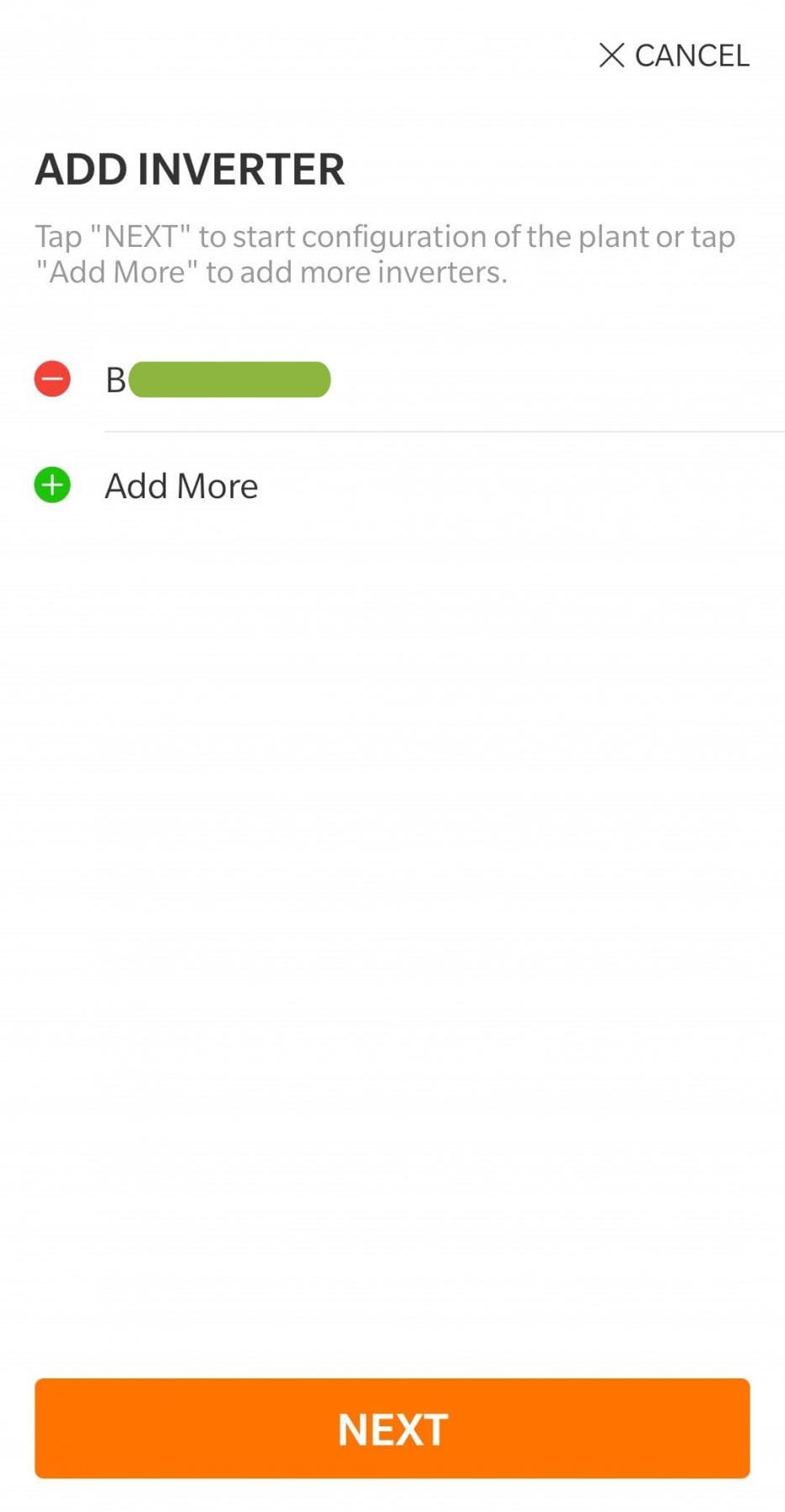
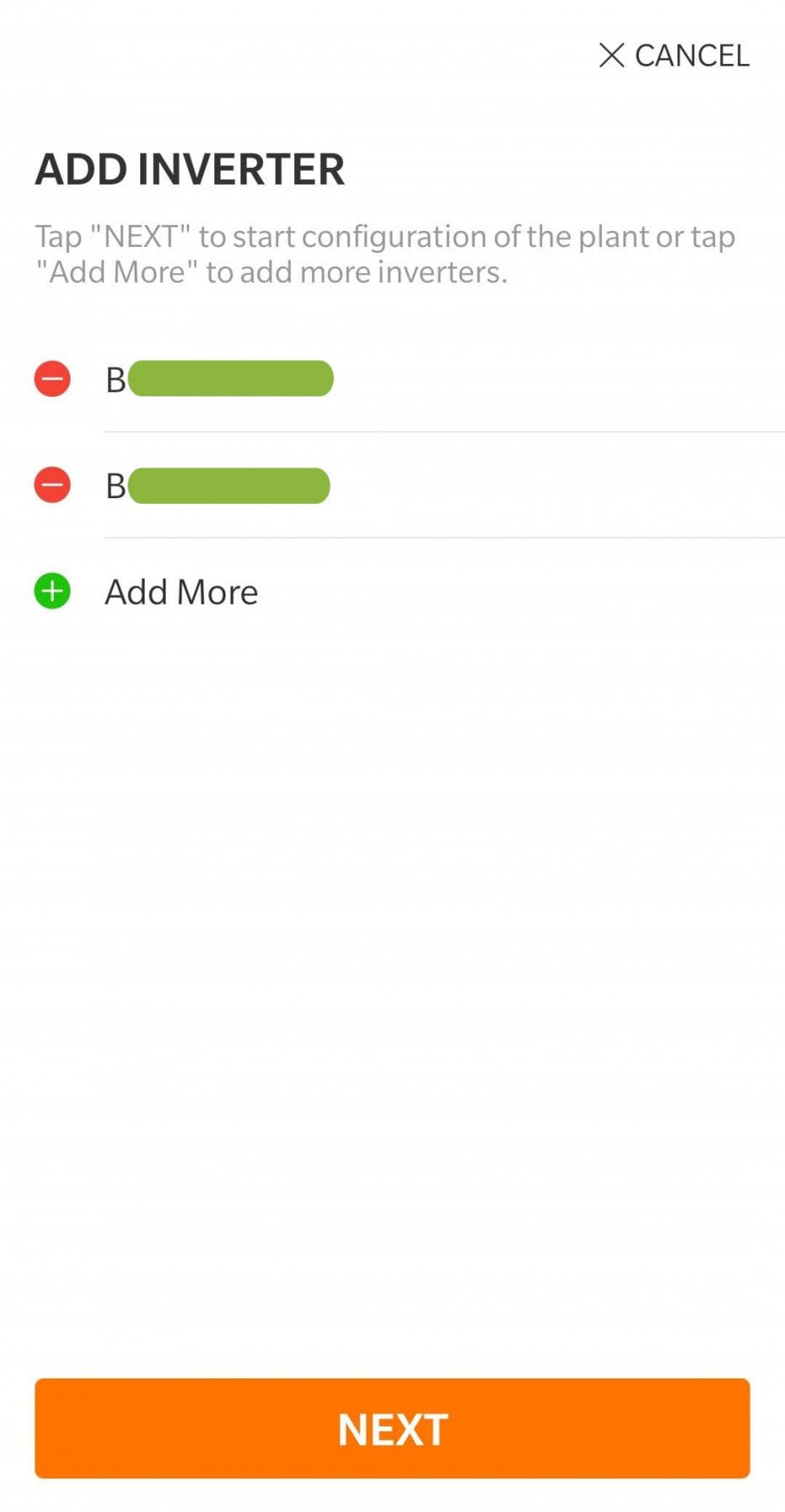
During the registration process, you will be prompted with the system name.  The default system name will be the serial number.  We ask that you add more information to the system name to help us find your system in our list.  We suggest adding your first initial, surname and suburb to the serial number.  For example:

A12345678 should be changed to A12345678 – B.Builder – Brisbane

If you have already set your system up, you can find the option to rename by going into the overview window and clicking the settings cog in the top right of the screen.  Then click into plant configuration and tap on plant name.

Step 5

WiFi connection

The setup process should take you through the WiFi connection process.  To complete this process, you will need to have the password for your home WiFi Router (your normal home WiFi password).

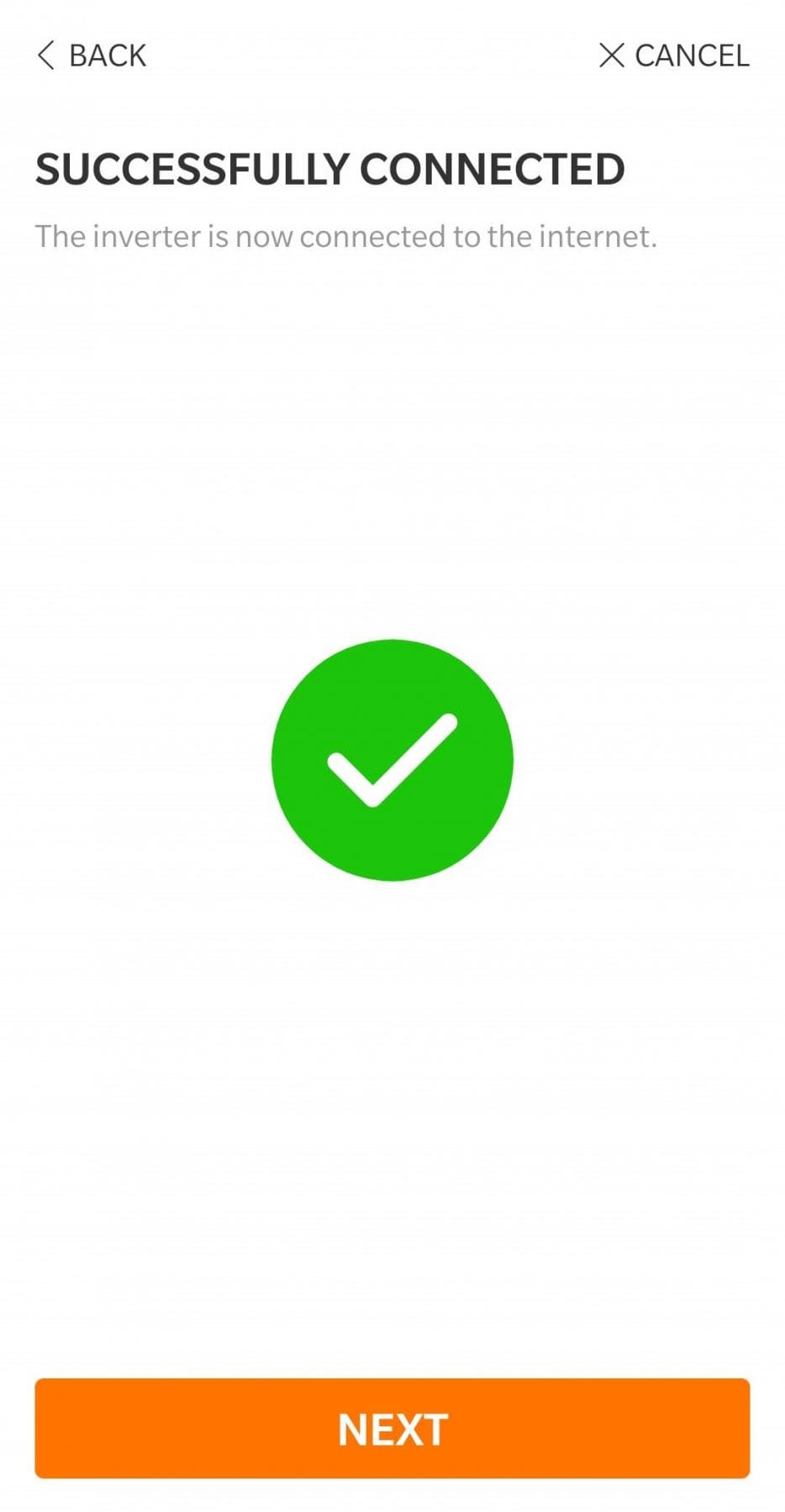
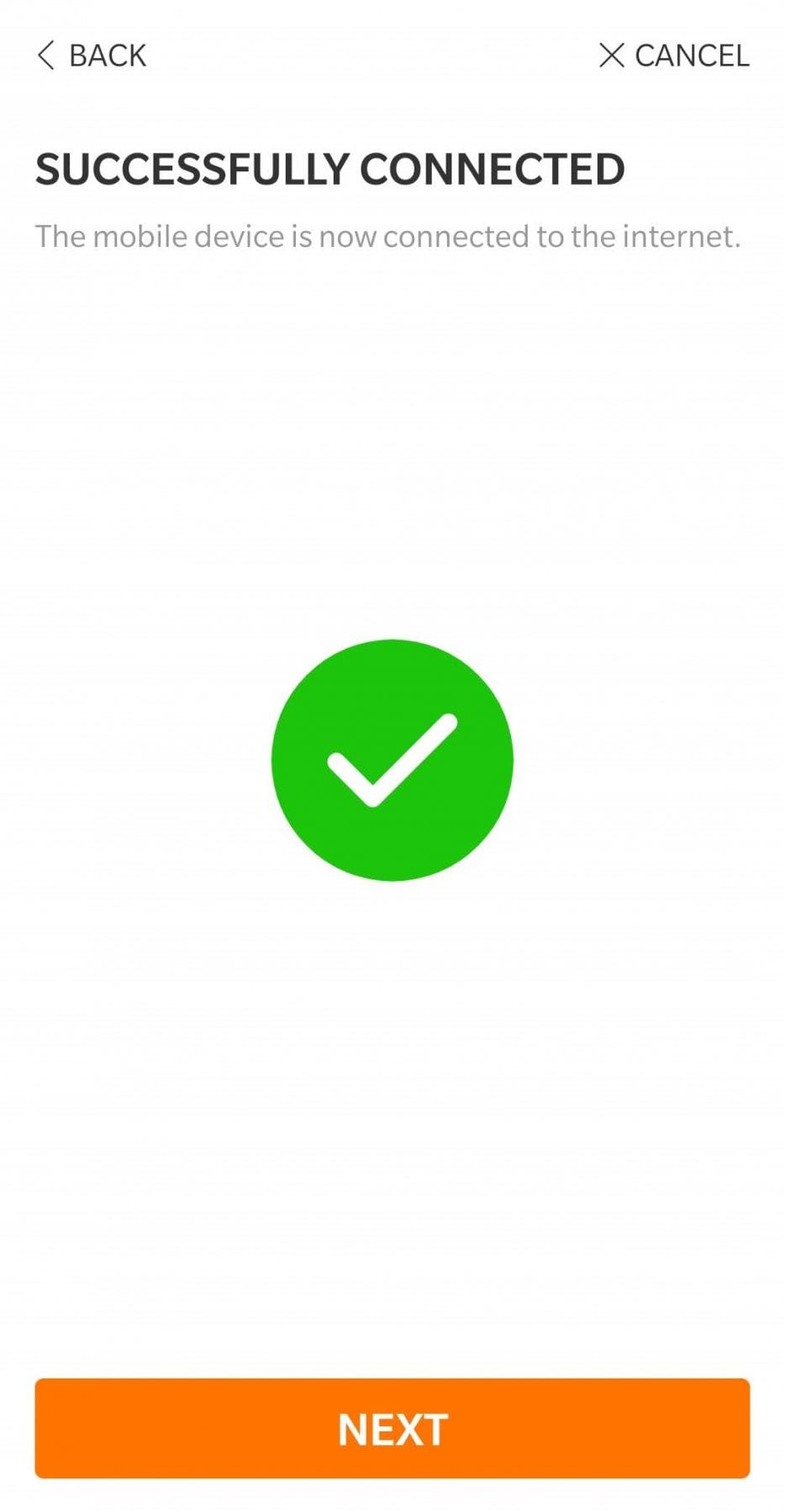
If you did not complete the WiFi setup process during the initial setup, you can manually add your home WiFi connection by going to the home screen of the iSolarCloud app.  On the bottom right corner, you will see a ‘Me’ icon.  Click this icon and select the ‘WiFi config’ option and follow the onscreen instructions.

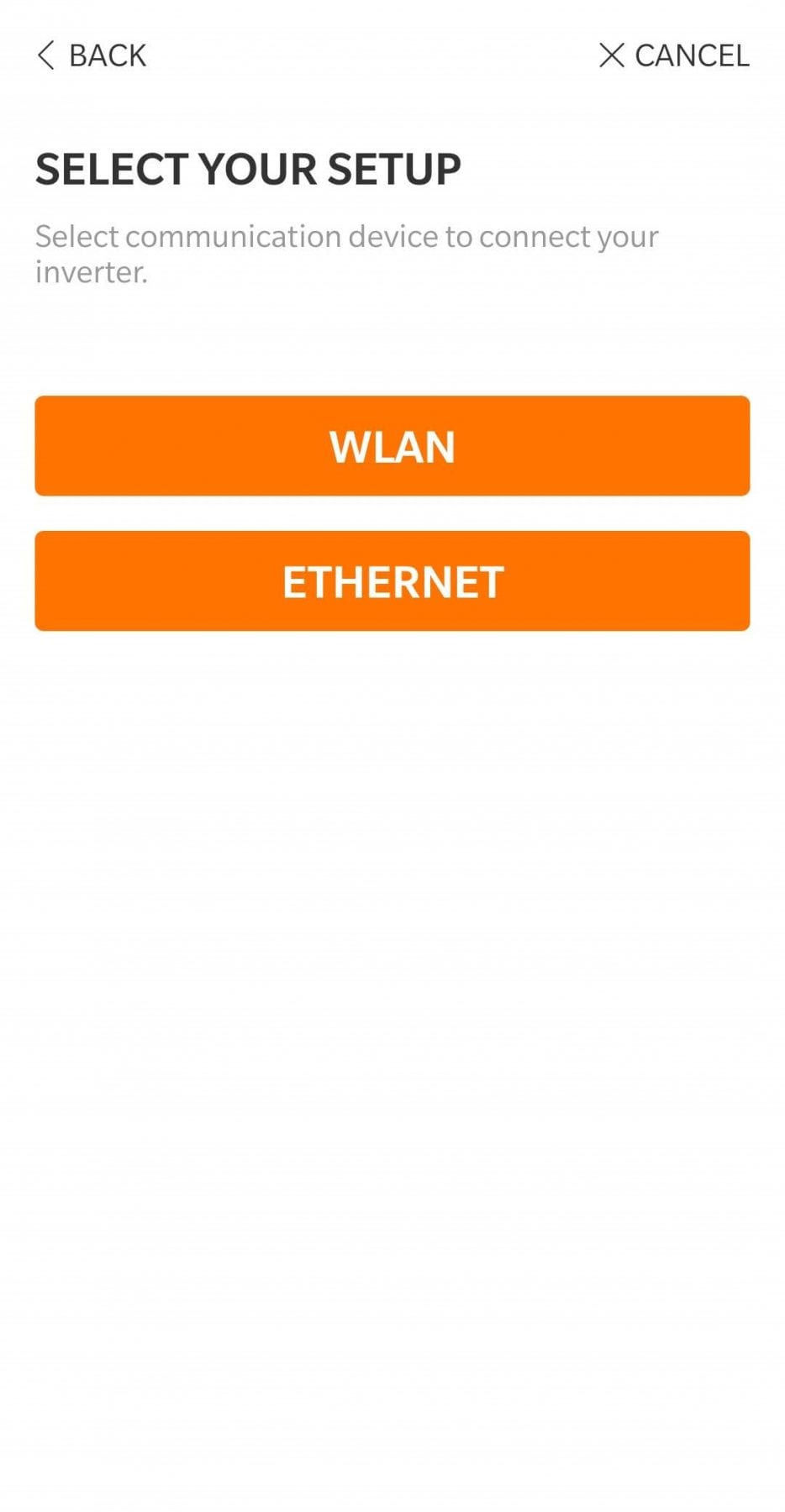
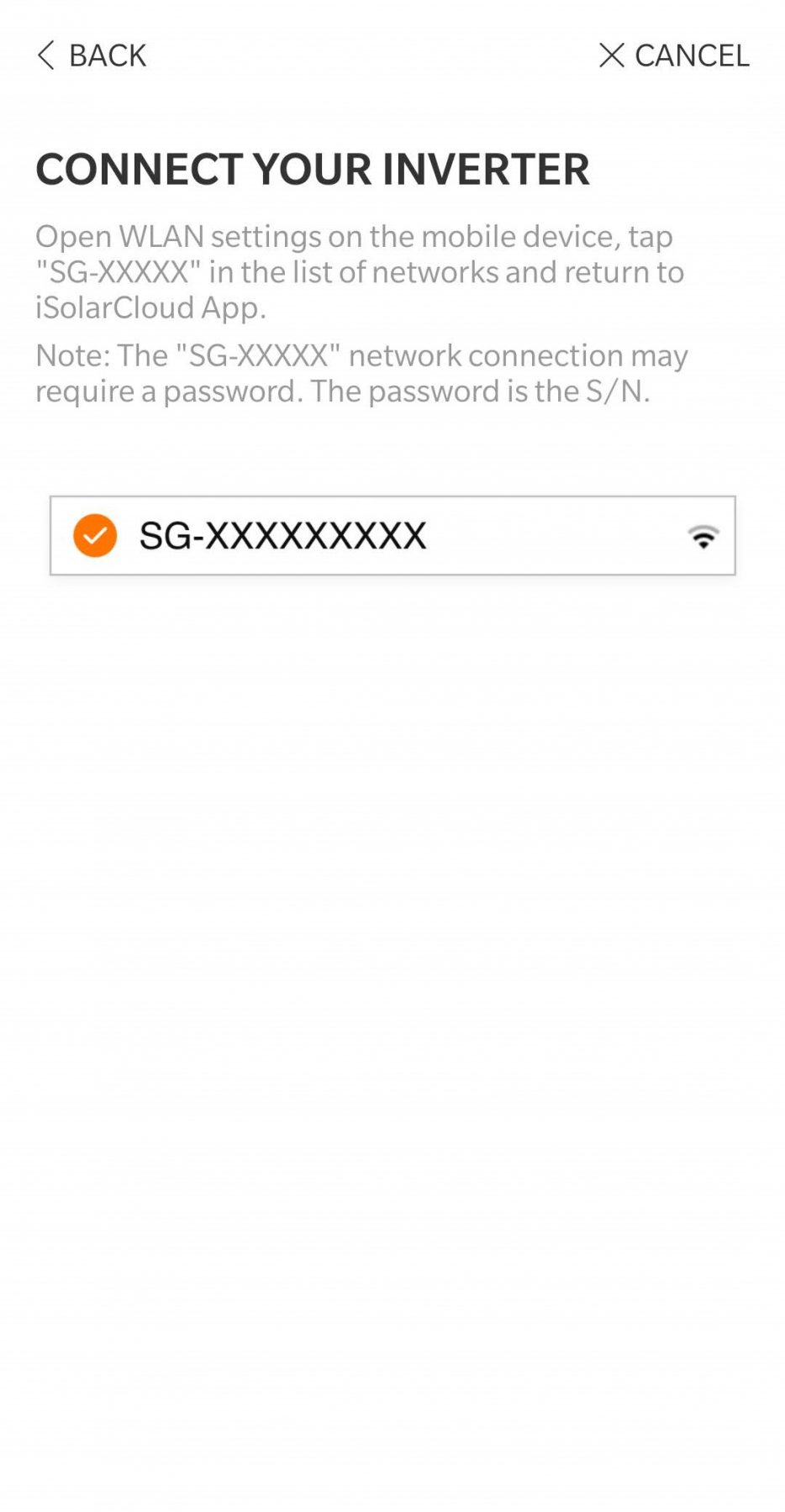
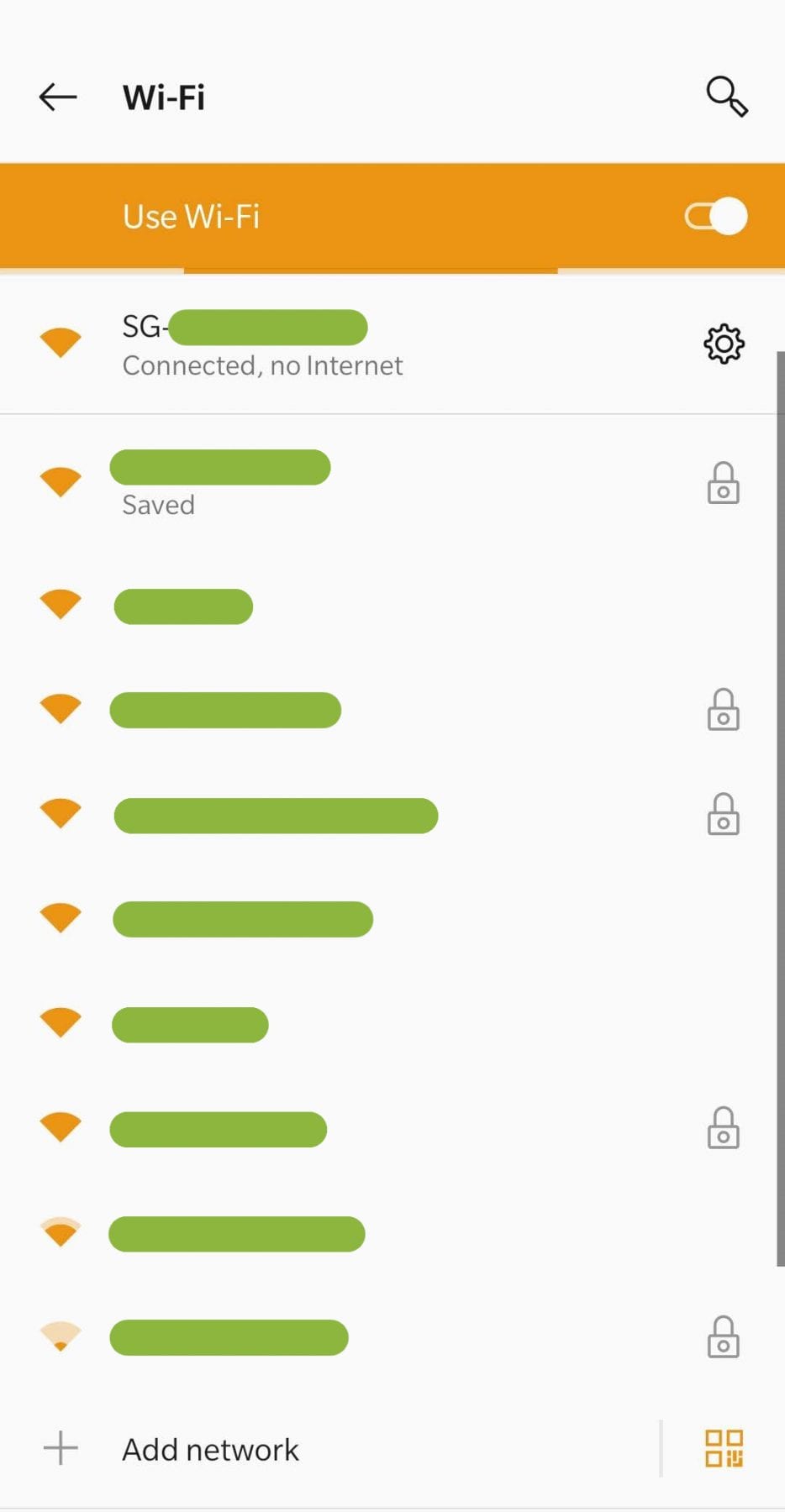
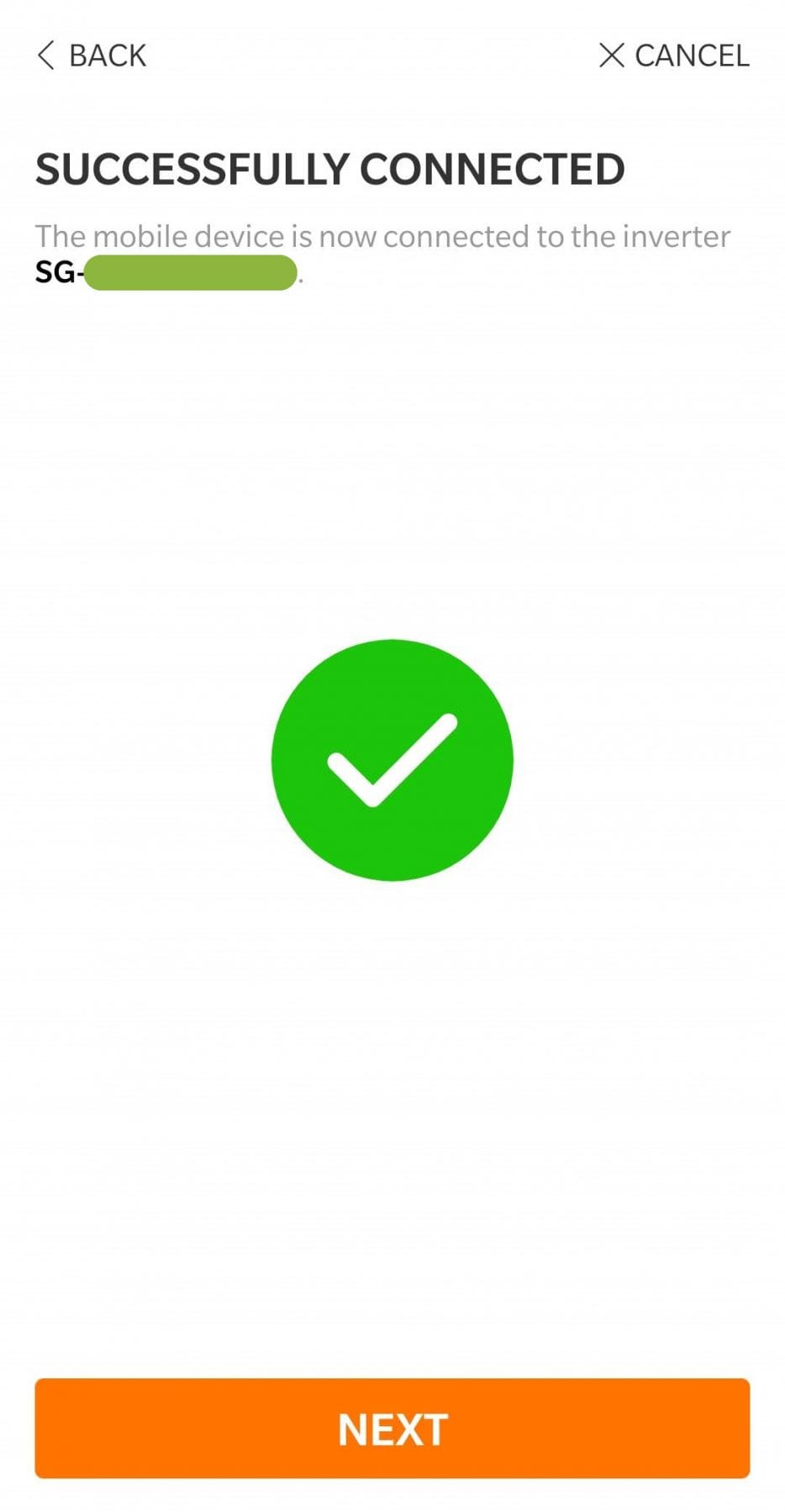
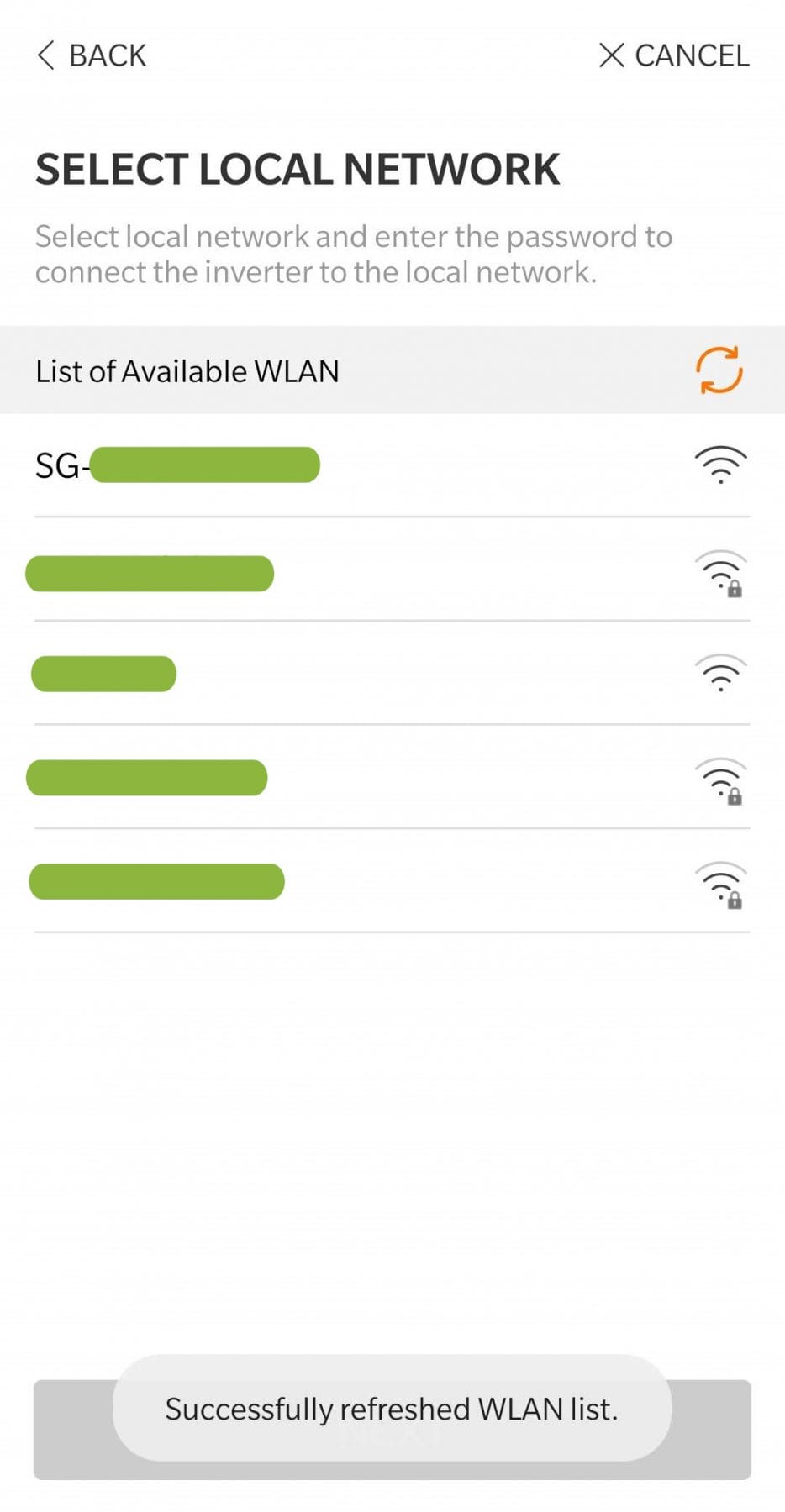
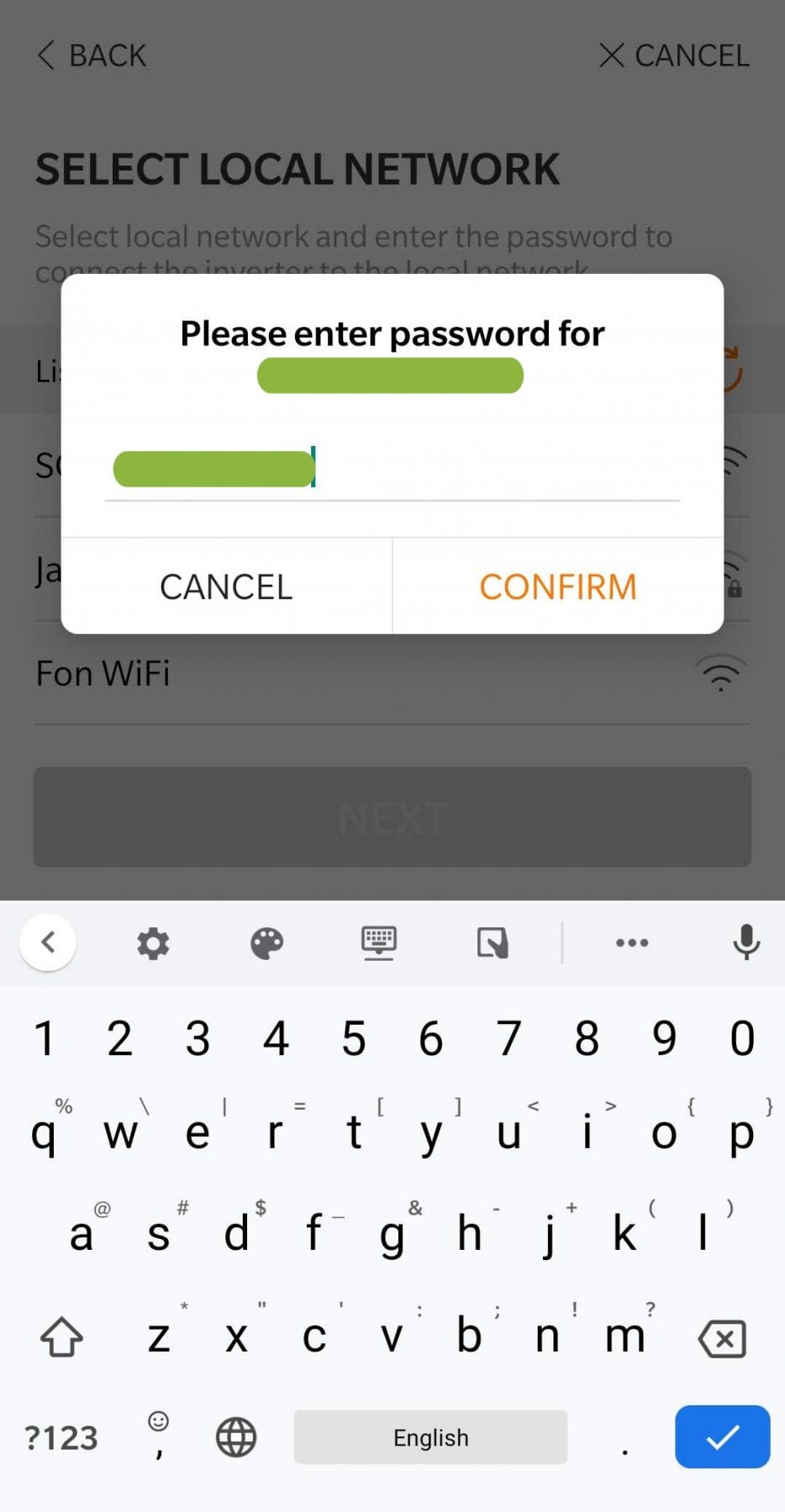
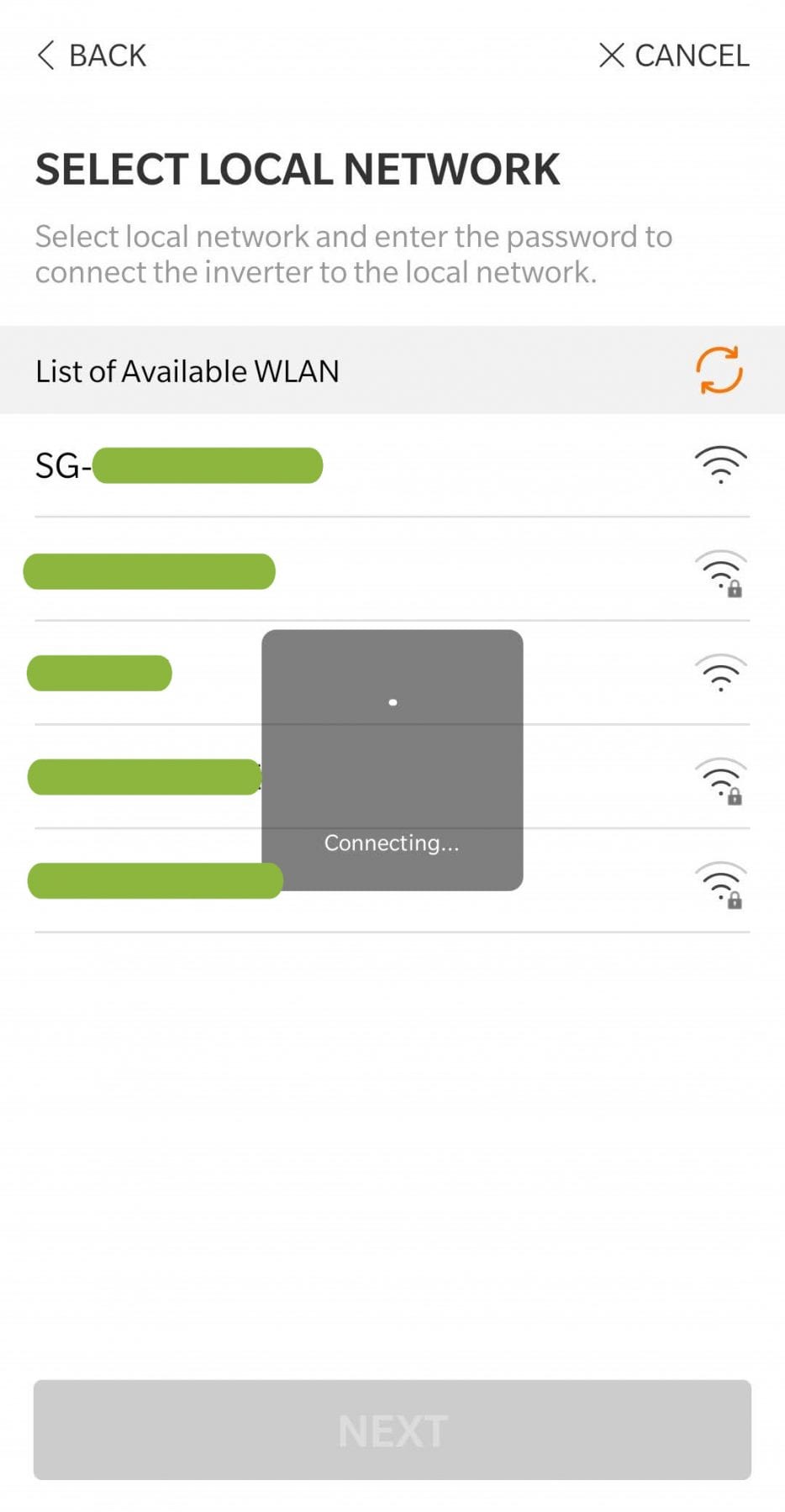
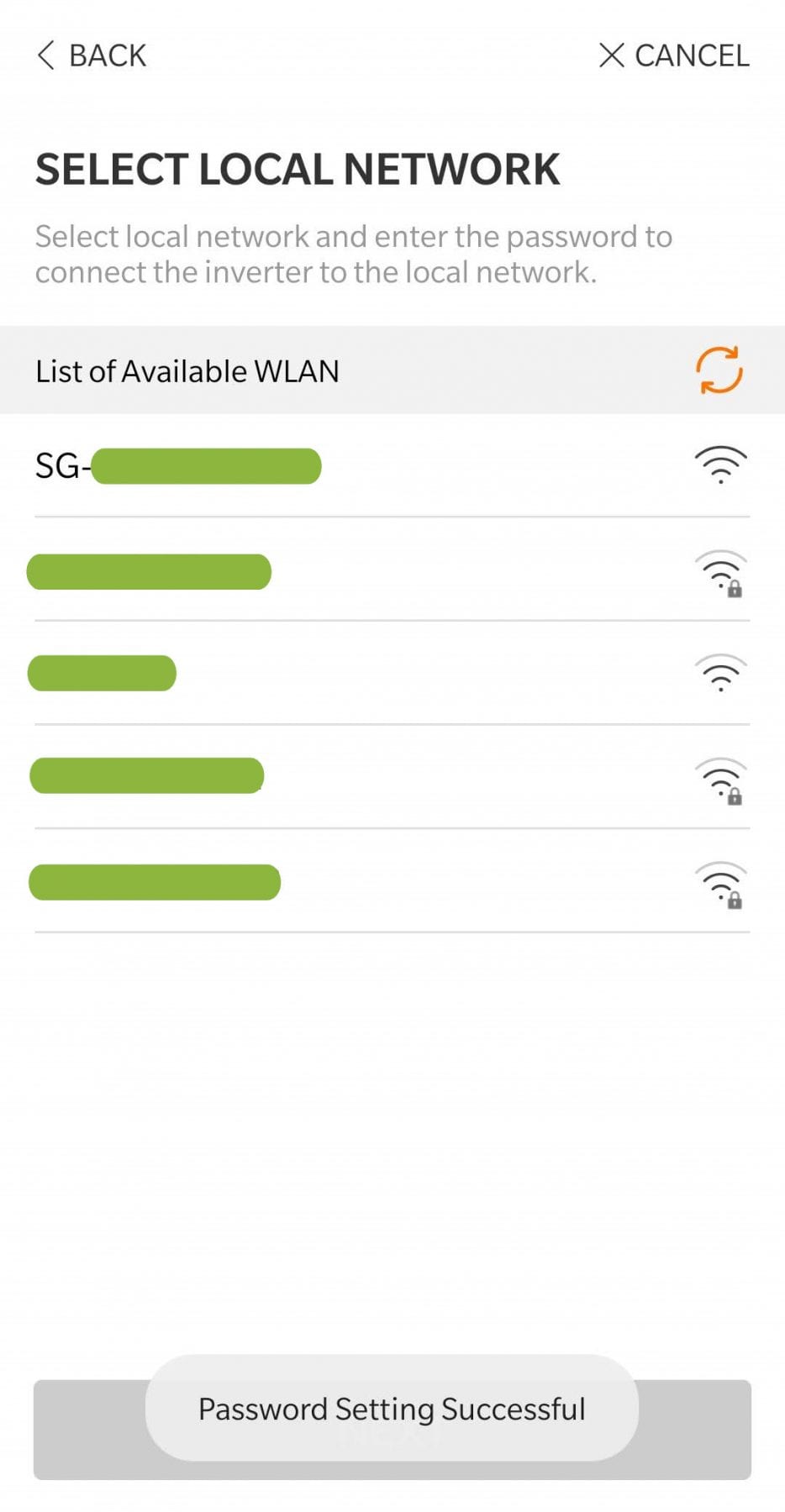
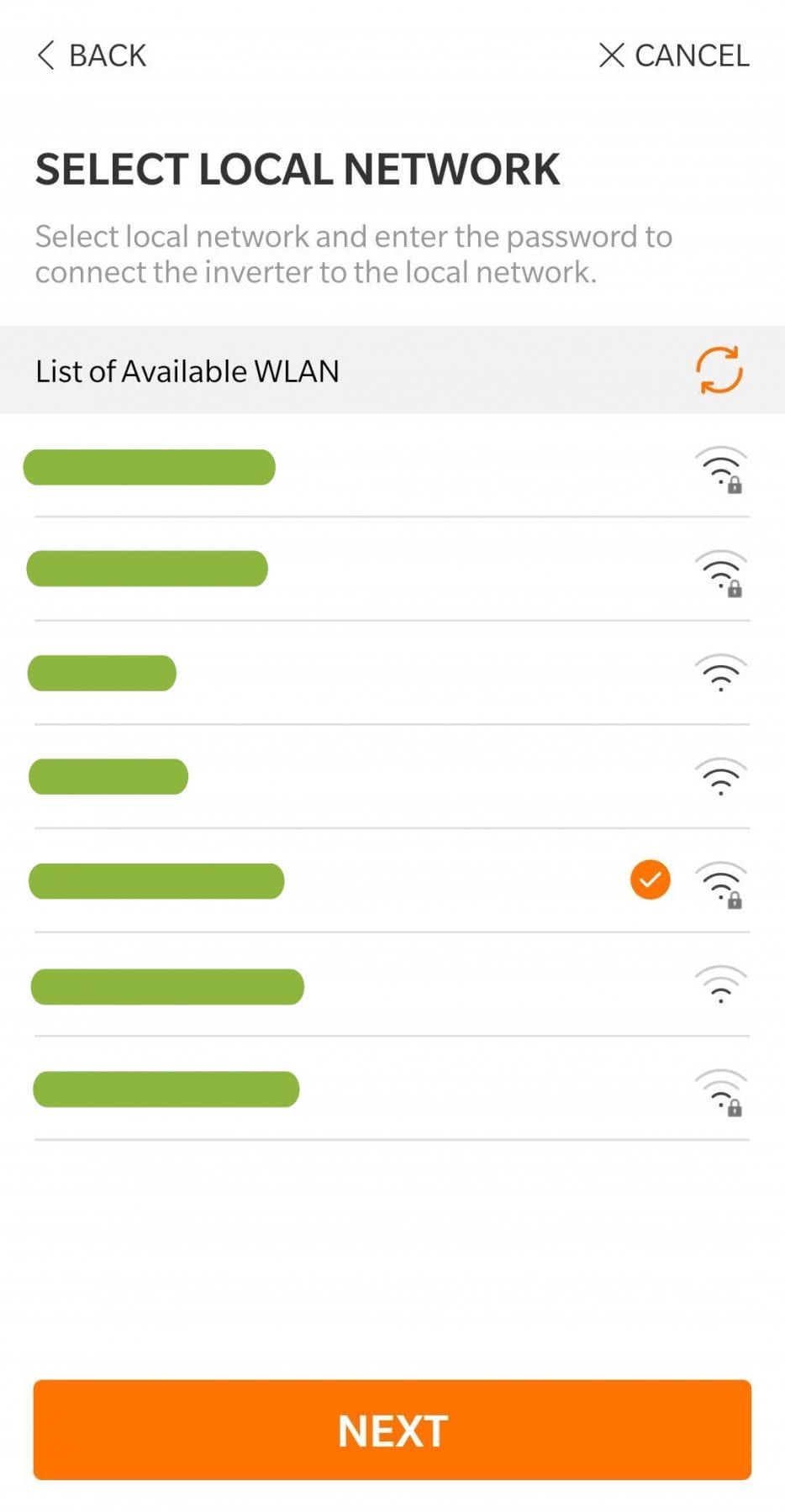
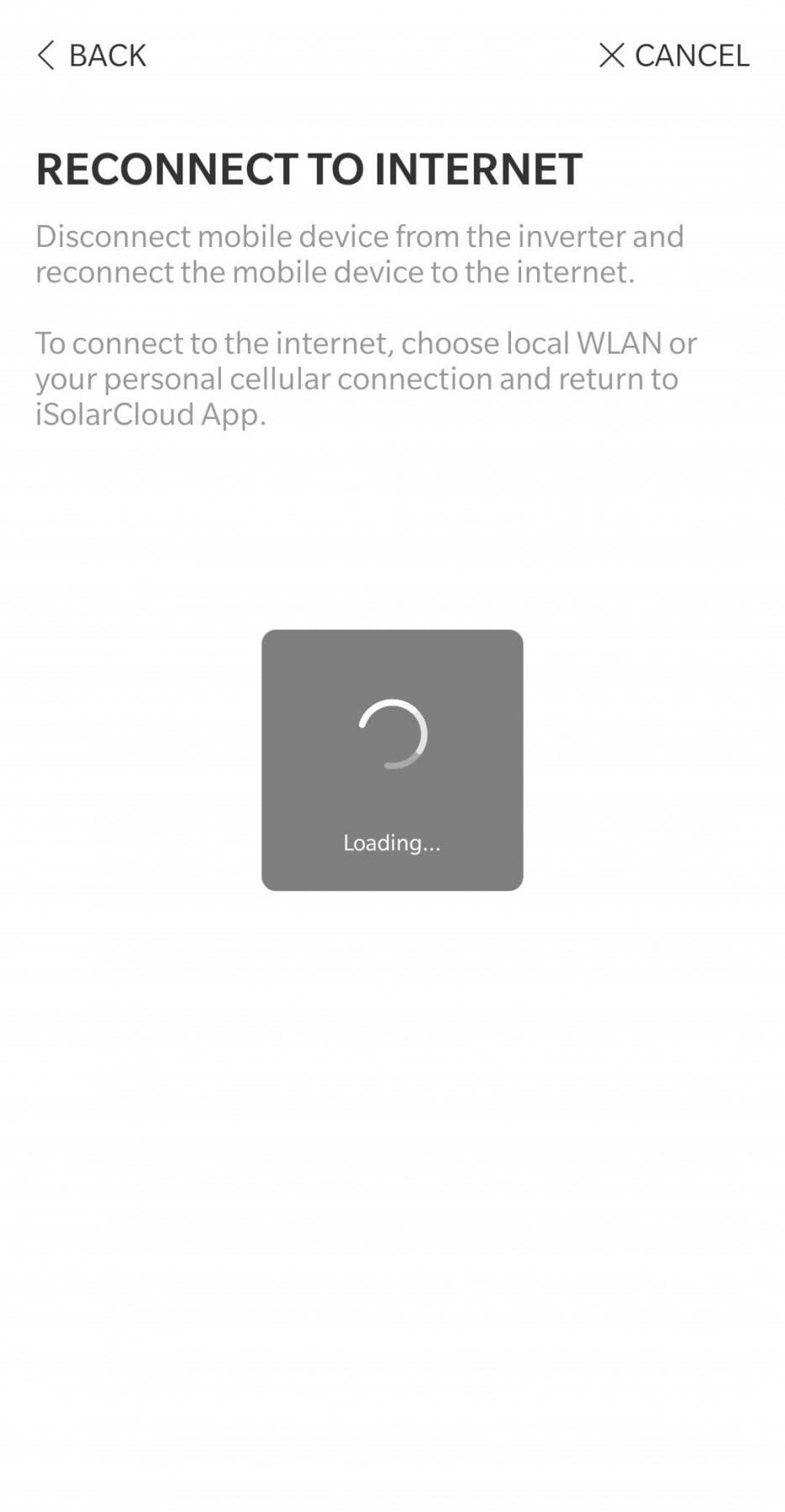
You will be asked to go to your phone/tablet settings and connect to the Sungrow WiFi network, then return to the iSolarCloud app.  Then you will be asked to select your home network name from a list of available WiFi networks.  You will then need to enter your home WiFi network password.

You can also use this manual WiFi connection process to reconnect your solar monitoring if your home modem connection is lost, or if you change your modem.

Step 6

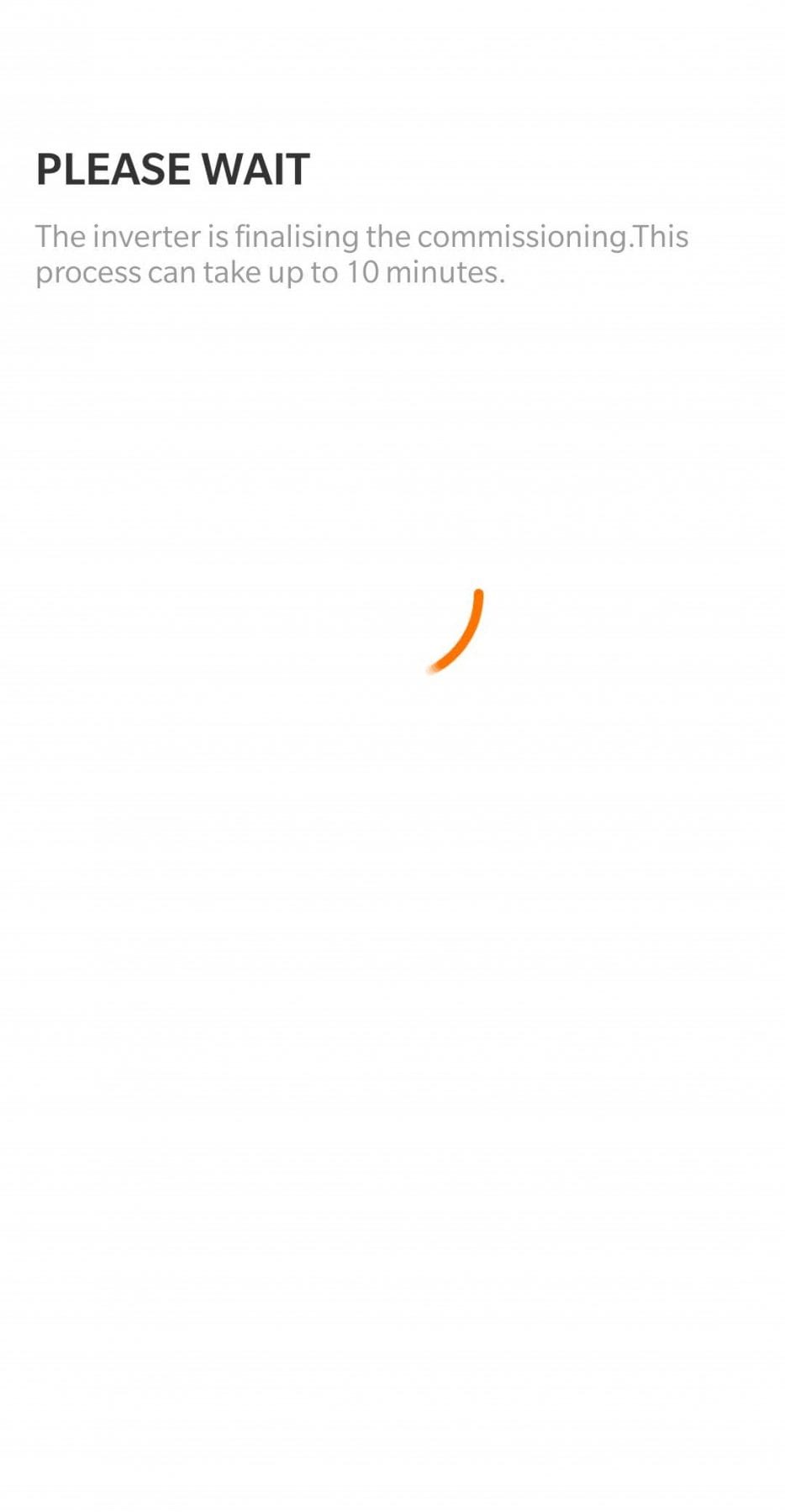
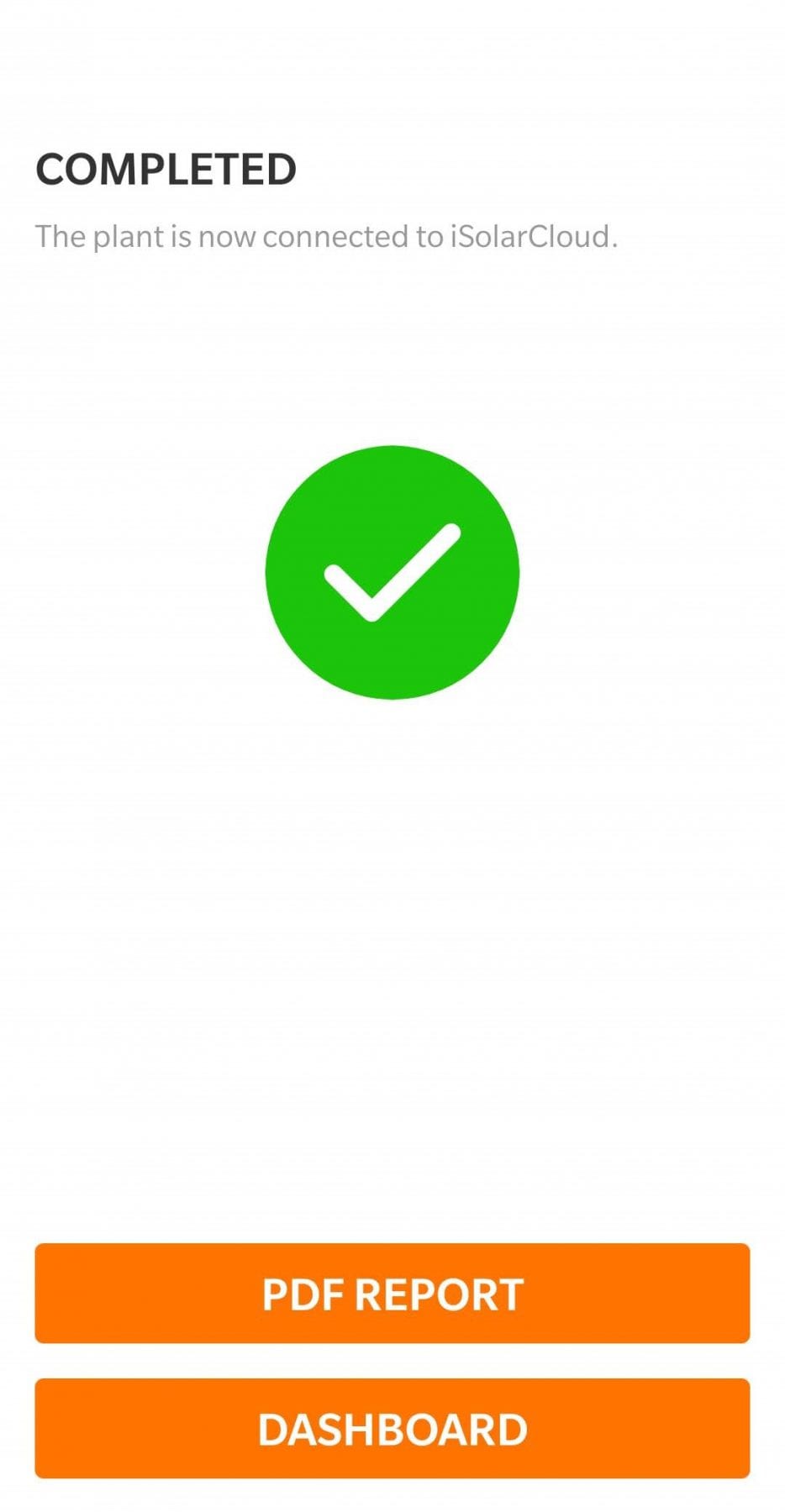
Once you have registered your email, set up the app and connected your modem to the solar inverter, it may take up to an hour for the data to be sent to your app.  It is best to leave the app for a few hours just to be sure.  Once this is complete, your app should be reporting solar production.

We have created a short video below to help you get the most from your app.  It will take you through reading your monitoring data so that you have a clear understanding of what is happening.  The video will also give you some good direction regarding how to get the best results by understanding your consumption and moving more of your daily energy use into the best solar periods.  This information could add hundreds of dollars a year to your existing solar savings.

If you have questions about how the app works, our recommendation is to observe the app for seven days and write down a number of questions.  It is best to to allow this time for the application to collect enough data so that we can effectively answer your questions.

Please email monitoring@gienergy.com.au to arrange a time for phone based training on your solar monitoring application.

Watch this video to learn how to use solar monitoring

This short walk-through of your iCloudSolar application will help you understand all of the important aspects of your new solar system:

  • Solar production
  • Total energy consumption of your home (Hybrid inverters only)
  • Energy sold to the grid/Feed-in (Hybrid inverters only)
  • Battery charge and discharge (Hybrid inverters with battery installations)
  • Energy purchased from the grid after solar energy is consumed (Hybrid inverters only)

Common problems in solar monitoring

We’ve put together this quick guide to common problems.

If you’ve set up your monitoring application and there is no information being reported, there are several issues that you can check for:

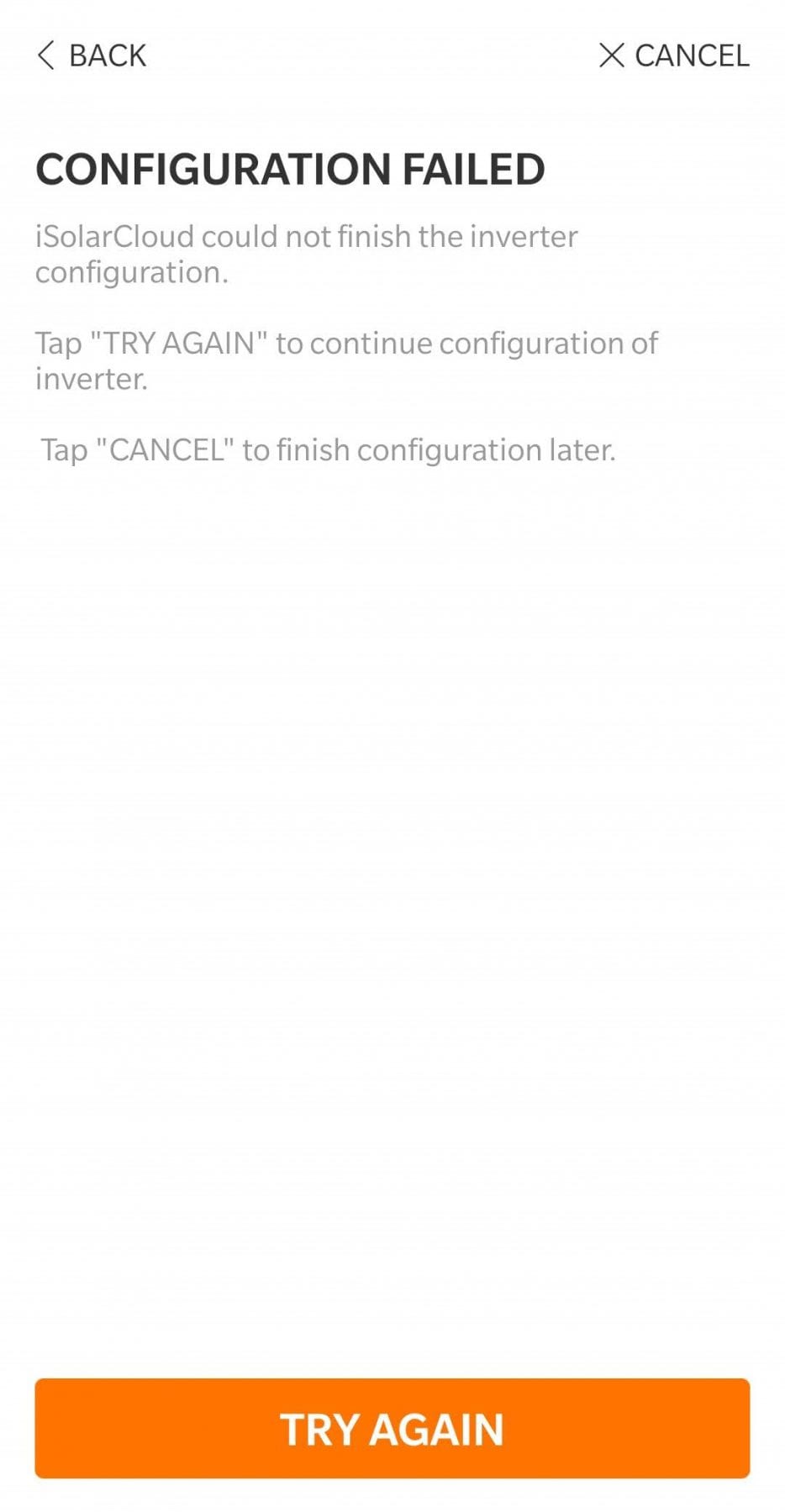
  1. You can go through the manual WiFi connection process to ensure your modem is talking to the solar inverter.  Please see Step 5 in the first section of this page.
  2. Check your plant configuration.  You can find this on the app by clicking on the setting icon (Cog) in the top right hand corner above your overview.  Go to plant configuration.  If you do have a battery installed, you need to ensure your plant type is ‘Residential Storage’  if you do not have a battery, please ensure you have ‘Residential PV’ selected.  If this setting is incorrect, the inverter cannot talk to the Sungrow website or your application.
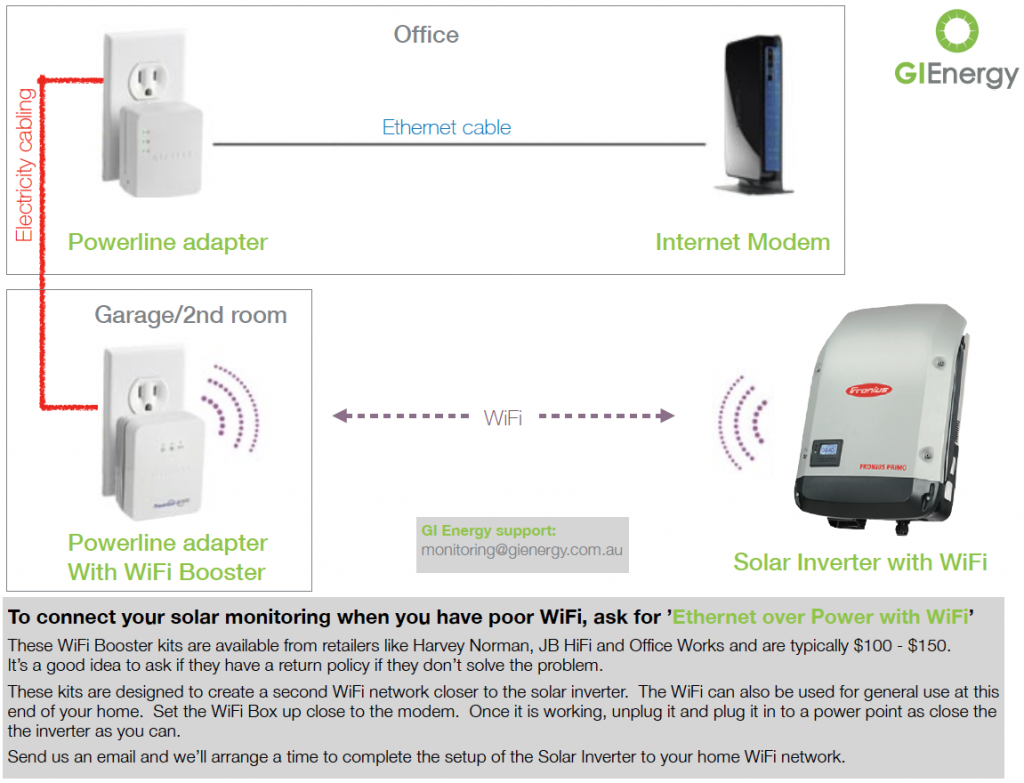
  3. If the above issues are not resolving your connection issue, it may be due to the strength of your WiFi connection between the solar inverter and your modem.  If the distance between the modem and inverter is too great, or there are too many walls and obstacles between them you may need to install a WiFi booster for your home network. See the diagram below or download a copy of this diagram to take to your local computer retailer and purchase the WiFi booster.

Ongoing support

GI Energy is committed to the long term success of our solar clients.  We are here to ensure you get the best from your solar system.  If you need any support please do not hesitate to contact us.

Typical customer questions include:

  • WiFi setup up or problem support
  • Solar performance queries
  • Application training
  • Ongoing billing queries

If you need further support, please do not hesitate to contact us directly:

Email: monitoring@gienergy.com.au

Phone: 1300 876 269

Sungrow also has a consumer support centre in Australia.  You can also contact them directly:

Email: service@sungrowpower.com.au

Phone: 1800 786 476

Use solar monitoring to save more on electricity bills

By understanding how you use energy, and becoming familiar with what your appliances are consuming you can become more effective at using solar energy.  The more you observe your energy consumption, the better you will become at managing your energy.